Blur background of a photo on iPhone
Short answer
To blur the background of a photo, open it in How to Blur Photo, leave the Background tab selected so the subject is masked automatically, pick a blur style, drag the Radius slider to the strength you want, and tap Save. The app is free to download, works on any photo already on your iPhone, and does not upload the image.
 Free · No uploads · Works on photos you already took
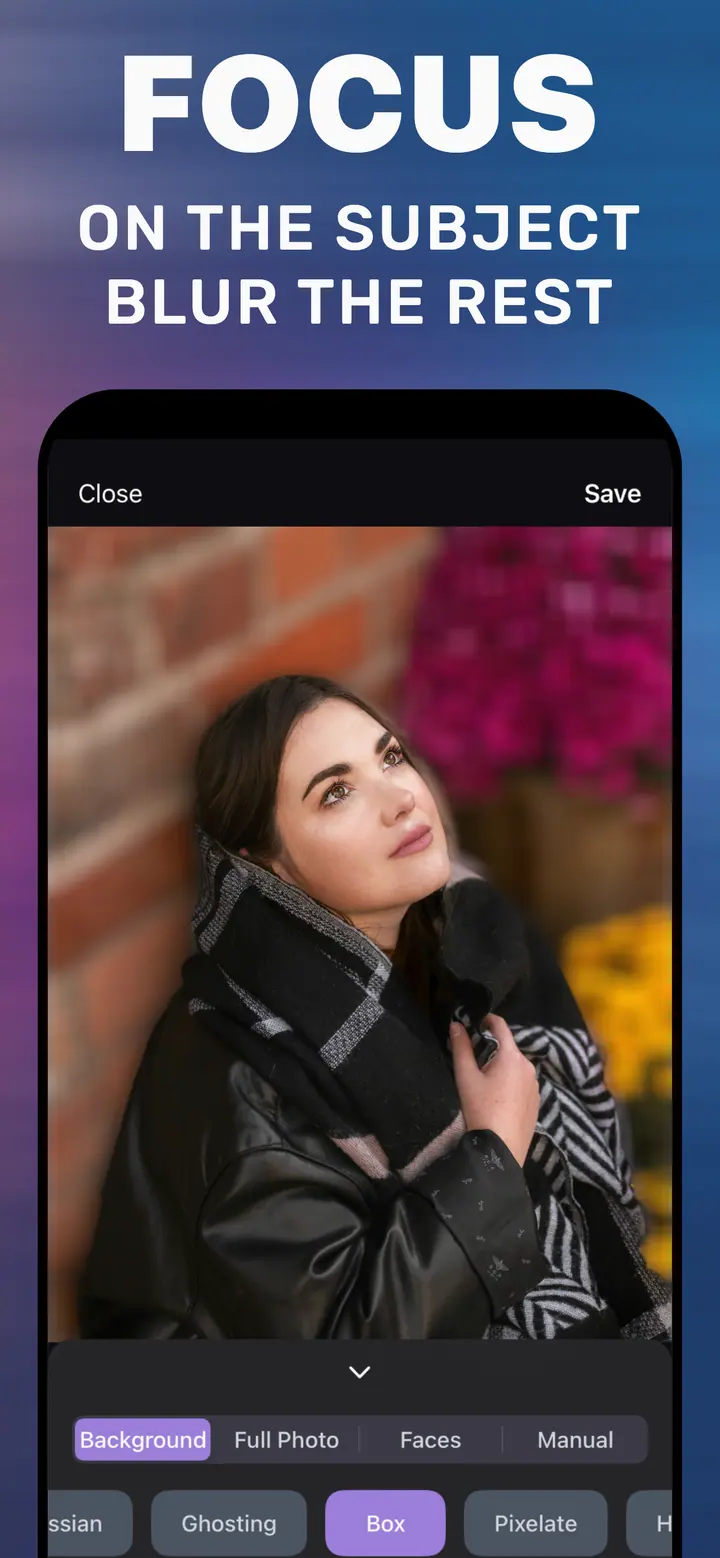
“Blur background of photo” is a result people want, not a technique they want to learn: the person or product in front sharp, the clutter behind gone soft. On iPhone that used to mean shooting in Portrait mode or moving the file to a desktop editor. How to Blur Photo does it on the phone, after the shot, with a slider.
Built into iPhone
Before you install anything
Check whether the photo was taken in Portrait mode. If it was, Photos → Edit already lets you change the blur with the f-number control. If the photo was shot in the normal Photo mode, on the selfie camera without Portrait, or it is a screenshot or a saved image, Photos offers no background blur at all — the depth data was never recorded.
What the app does with a background
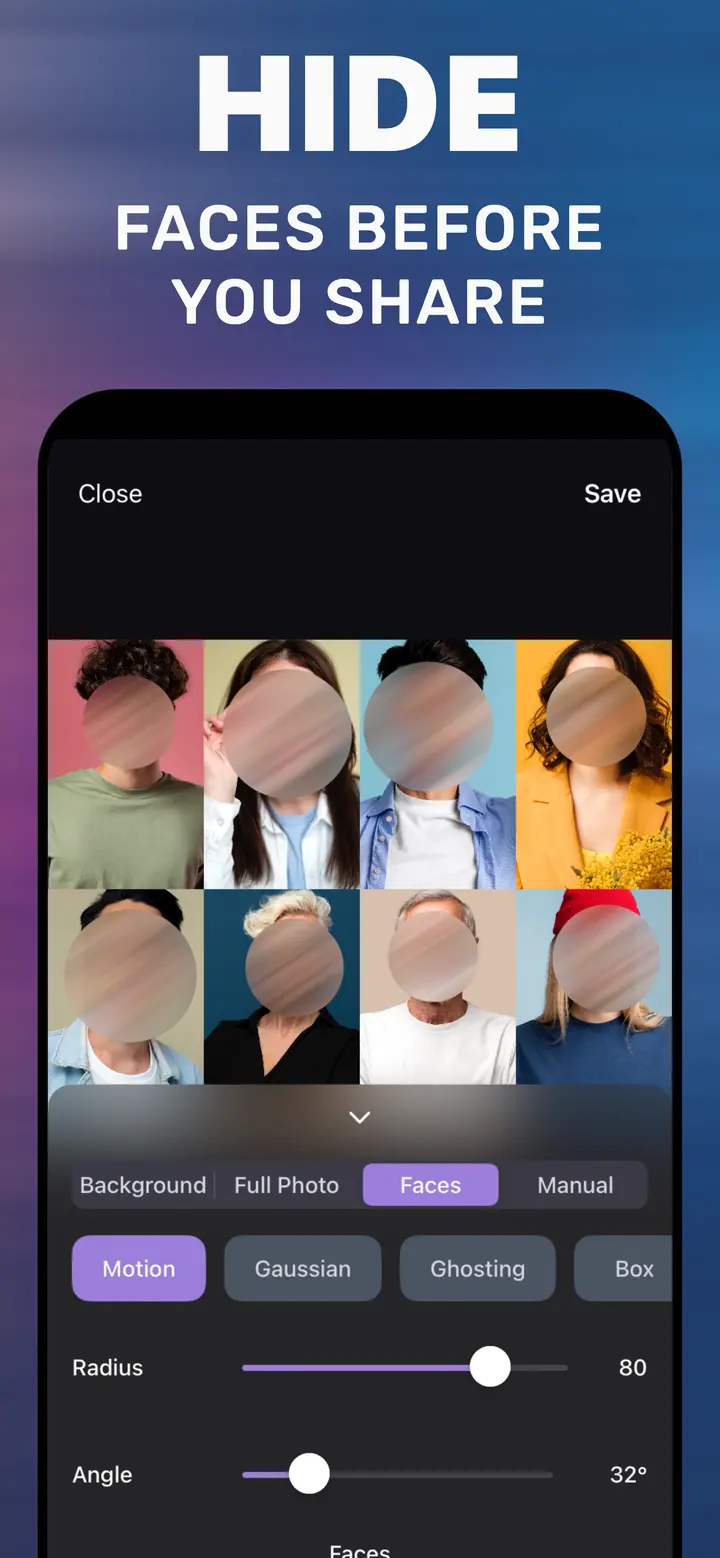
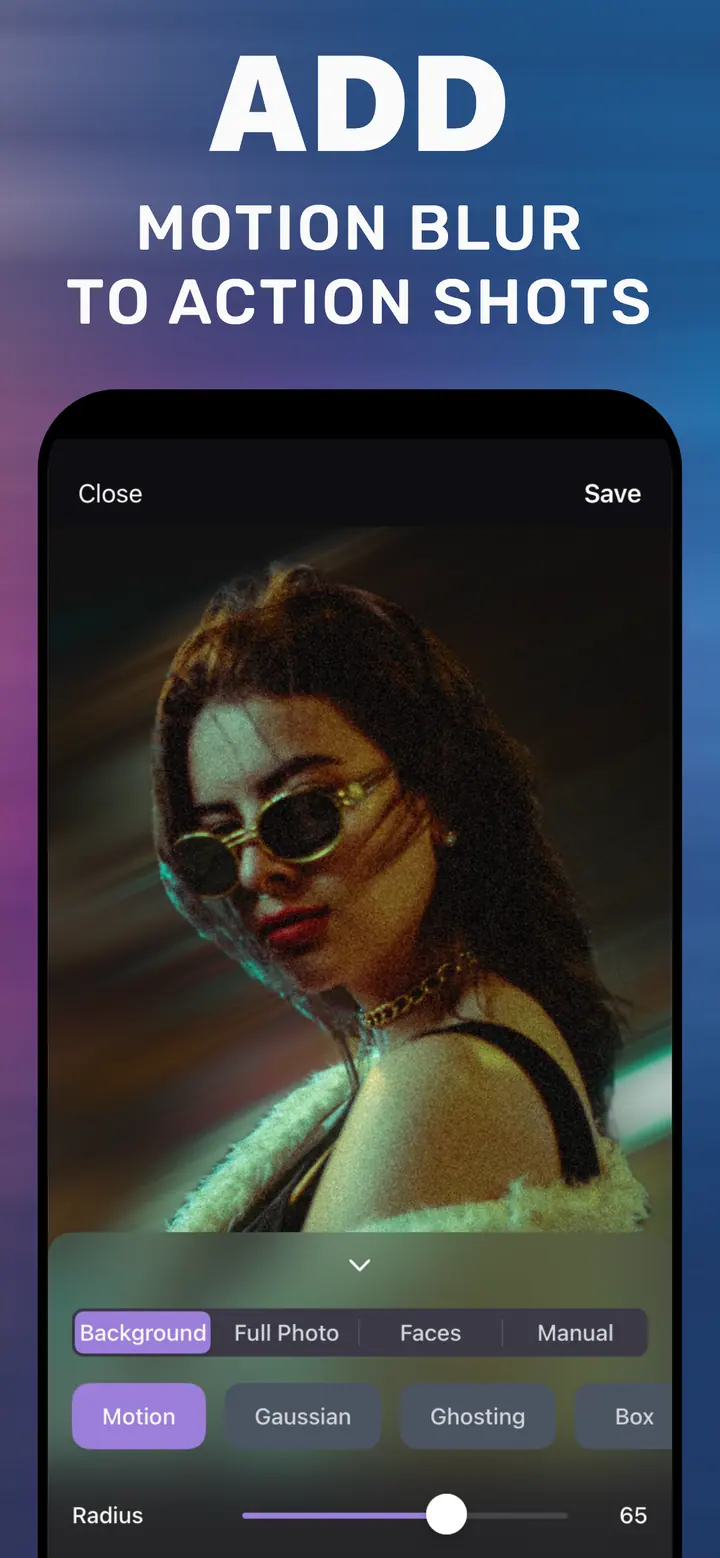
How to Blur Photo builds a mask around the main subject and applies the blur outside that mask. You can choose the kind of blur: Gaussian for a lens-like softness, Motion for directional streaks, Ghosting for a dreamy double image, Box for a flatter digital look, plus Pixelate, Hexagonal, and Crystallize for stylised backgrounds.
The Radius slider controls strength, and for Motion an Angle slider controls direction. Nothing leaves the phone; the whole pipeline is on-device, which is also why it works without a connection.
Where a blurred background helps most
Profile photos and LinkedIn headshots taken in a kitchen or office. Marketplace product photos where the table and wall distract from the item. Instagram posts where a busy background competes with the person. Group shots where you want attention on one face. In each case the same three taps apply.
How to blur the background of a photo in the app
-
Choose the photo
Open How to Blur Photo and select the image from your library. Any format that Photos can show is fine.
-
Let the Background tab find the subject
Background is the default mode. The subject is masked automatically; the preview shows the blur applied only behind it.
-
Set style and strength, then Save
Tap a style chip (Gaussian is the safe default), drag Radius, check the edges by zooming in, and tap Save to write a copy to Photos.
Download How to Blur Photo
Free · iPhone with iOS 18.6+ · No uploads
Tips
If the app picked the wrong subject in a crowded frame, switch to Manual and brush the areas you want blurred.
Keep Radius below 50 for headshots; strong blur behind a face looks like a cutout.
Save once at a moderate setting and once stronger — it is quicker than second-guessing on a small screen.
Frequently asked
Is it free to blur the background of a photo?
Yes. How to Blur Photo is free to download and includes basic background blur. Advanced styles and tools are optional in-app purchases.
Does it work on old photos?
Yes. Anything in your library can be opened, including photos imported from a camera or downloaded from the web.
Will the original be replaced?
No. Save writes a new image to your library and leaves the original untouched.