How to blur a license plate in a photo on iPhone
Short answer
To blur a license plate in a photo on iPhone, open the image in How to Blur Photo, tap Manual, brush over the plate, choose Pixelate or Box, raise Radius until the characters cannot be read, and tap Save. It takes under a minute per photo and the image never leaves your iPhone.
 Free · No uploads · Works on photos you already took
Car listings, road-trip albums, dashcam stills, and parking disputes all end up online with plates visible. A plate ties a photo to a registered address and is routinely scraped from marketplaces. Blurring it before upload is quick on iPhone once you have a tool with a brush — the Photos app itself does not have one.
Built into iPhone
Built-in options
Markup can place a solid rectangle over the plate (Photos → Edit → pen → + → Add Shape → fill). It works, but it looks like a black bar, needs rotating to match an angled plate, and is easy to leave semi-transparent by mistake. Clean Up on Apple Intelligence iPhones may try to remove the plate and generate a blank bumper, with mixed results. A blur brush is simpler and looks like a normal edited photo.
Pixelate or Box for plates
Plates are high-contrast text, and high-contrast text is the easiest thing to reconstruct from a weak blur. Pixelate at a Radius where each block is larger than a character is the safe choice and is what news outlets use. Box blur at a high Radius is a softer-looking alternative. Gaussian works only if pushed very high; at moderate settings the letter shapes survive.
For a car listing, blur the plate on every photo in the set, including reflections in bumpers, windows, and wet ground behind the car.
Angled plates and multiple cars
Because Manual mode is a brush rather than a rectangle, an angled or partly obscured plate is painted in one stroke. In a car-park photo with several vehicles, paint each plate; Radius applies to all of them at once.
How to blur a license plate in How to Blur Photo
-
Open the car photo
Launch How to Blur Photo and choose the image.
-
Tap Manual and choose Pixelate or Box
Manual gives you a brush; Pixelate makes characters unreadable.
-
Brush over the plate and raise Radius
Paint slightly past the plate edges. Increase Radius until no character is legible when zoomed in.
-
Save
Tap Save; the exported copy is the one to upload to the listing or album.

Download How to Blur Photo
Free · iPhone with iOS 18.6+ · No uploads
Tips
Check for a second plate: front and rear plates, dealer plates, and the plate in a mirror or window reflection.
Blur before applying any listing-site filters or compression; some marketplaces re-encode uploads aggressively.
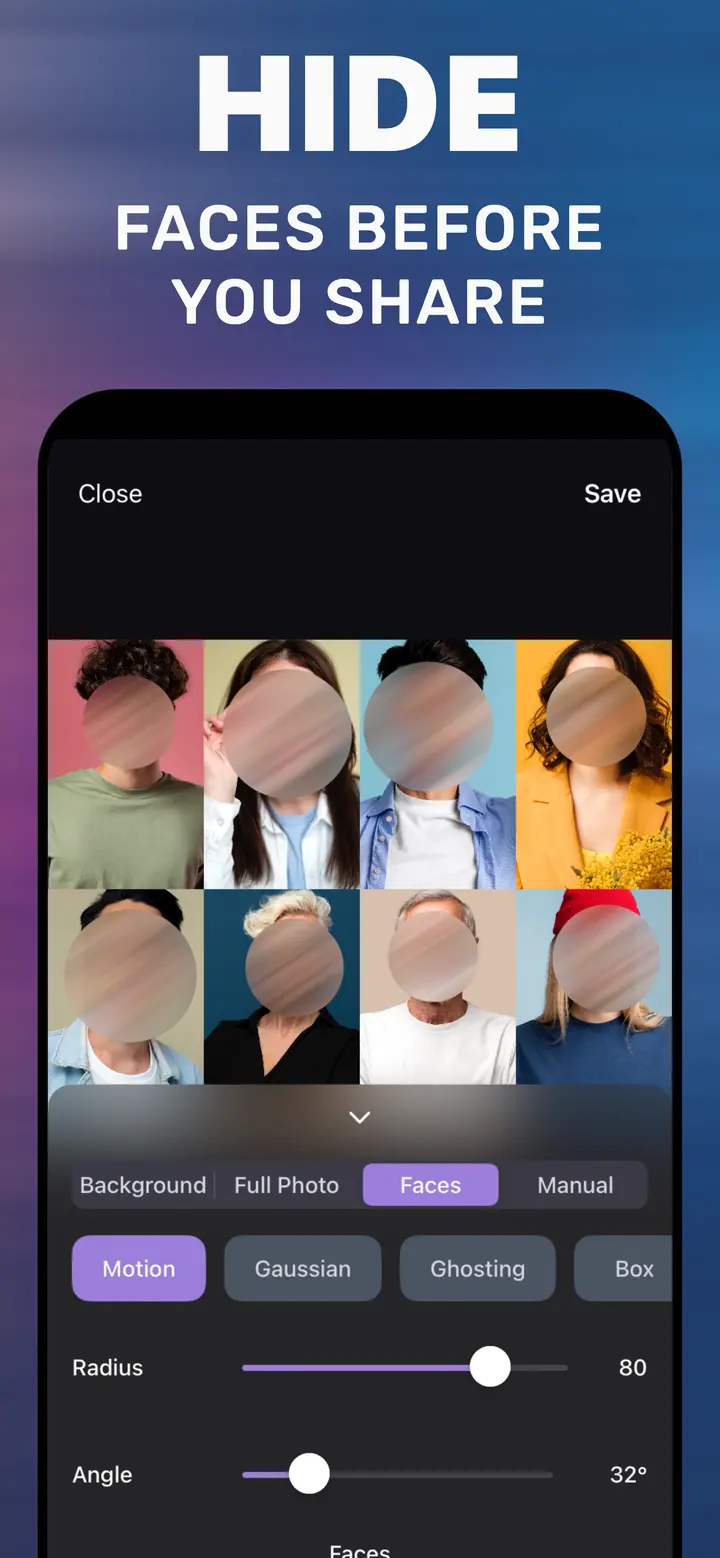
For a dashcam still, the Faces tab hides pedestrians and the Manual tab hides plates in the same session.
Frequently asked
Should I blur my license plate in photos?
For public listings and social posts, yes. A plate links the photo to a registration and location and is easy to scrape; blurring it costs a minute.
Can I blur a license plate in the iPhone Photos app?
Only by covering it with a Markup shape. Photos has no blur brush; How to Blur Photo’s Manual tab does it with adjustable strength.
Which blur style is safest for plates?
Pixelate with blocks larger than a character, or Box at a high Radius. Avoid light gaussian blur on plates.