Motion blur effect on iPhone photos — add speed after the shot
Short answer
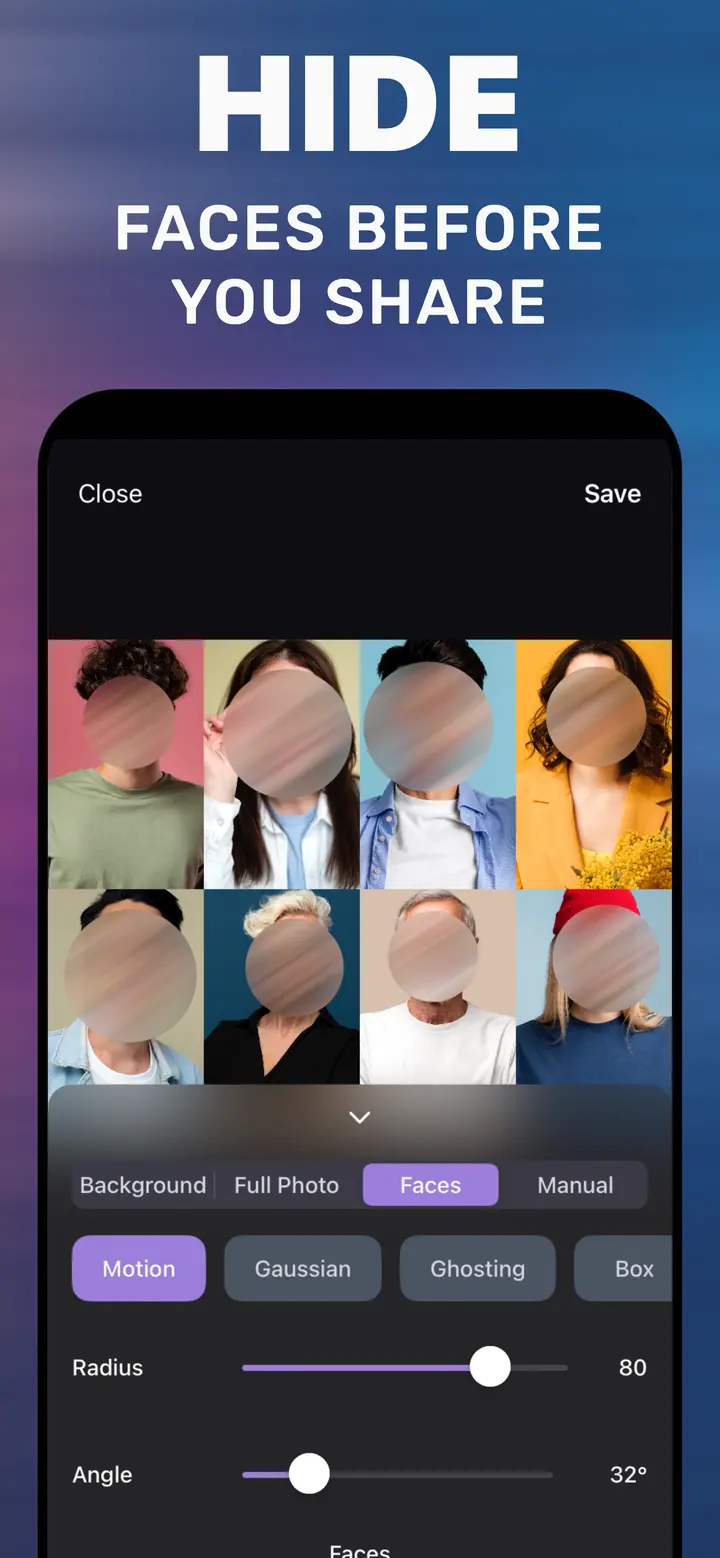
To add a motion blur effect to a photo on iPhone, open it in How to Blur Photo, keep the Background tab so the subject stays sharp, tap the Motion style, set Radius for the length of the streaks and Angle for their direction, and tap Save. For a full-frame streak, use the Full Photo tab with the same controls.
 Free · No uploads · Works on photos you already took
Motion blur is what a camera records when something moves during the exposure: streaks in the direction of travel. Phones freeze motion by default, so action photos often look static. The motion blur effect adds those streaks back — to the background behind a moving subject, or to the whole frame for a panning look — and How to Blur Photo does it on the iPhone with two sliders.
Built into iPhone
Can iPhone do motion blur natively?
Not on a photo you already took. Some iPhone models offer long-exposure effects on Live Photos, which blur anything that moved during the capture — the opposite of what you usually want, since the subject blurs too. Photos has no directional blur filter. The effect has to be added in an editor that can separate the subject from the background.
Radius and Angle
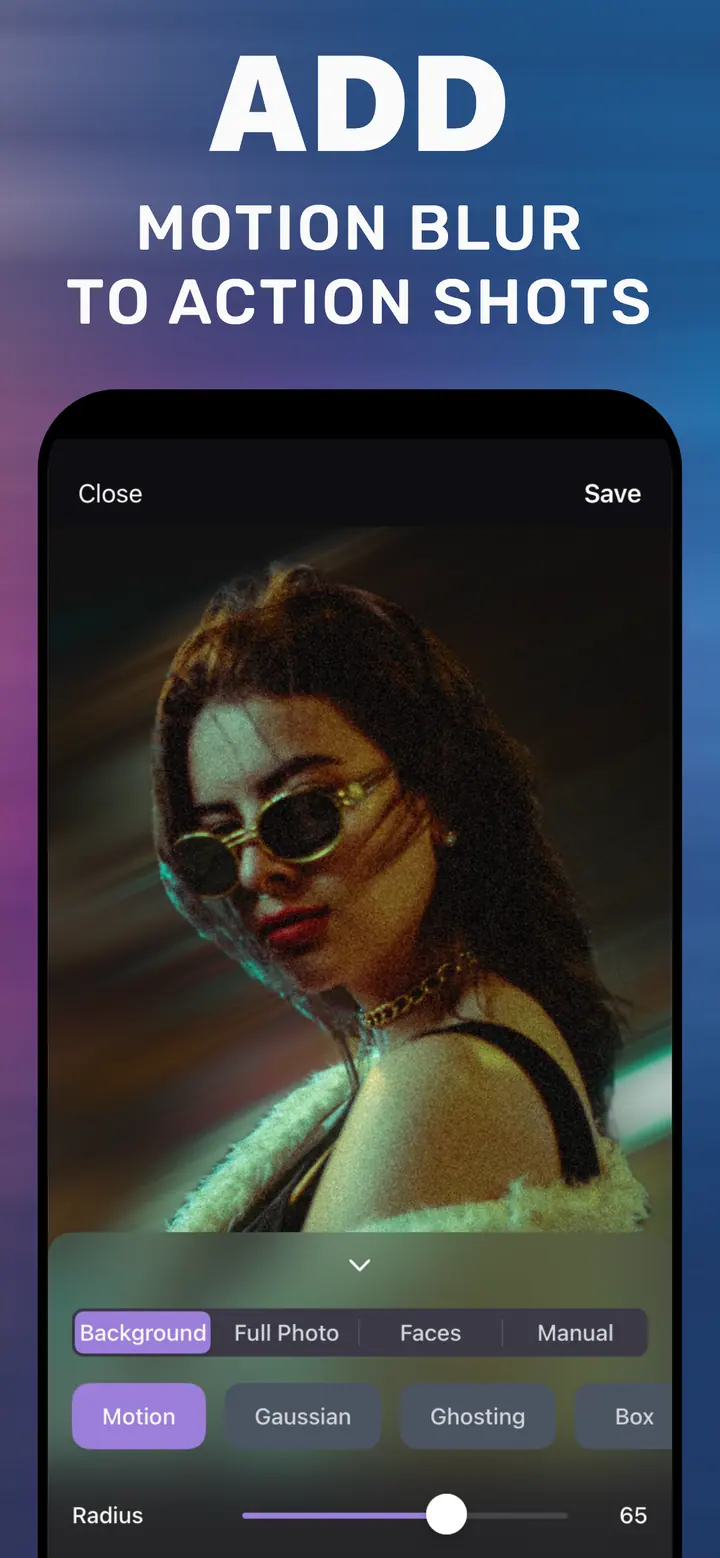
Radius sets how long the streaks are. Around 30–50 reads as a fast pan; 65 and above (the App Store screenshot shows 65) looks like high speed. Angle sets the direction. Match it to the direction of travel: near 0° for a car crossing the frame, around 90° for a jump or a skateboard trick going up, and something in between for a diagonal.
Because the subject is masked on the Background tab, the person or vehicle stays crisp while the street, track, or crowd streaks behind them — which is exactly how a panned action shot looks.
When to use Full Photo instead
If the whole frame should feel like it is moving — a train window, city lights, a dance floor — switch to the Full Photo tab and apply Motion to everything. Keep Radius lower there; full-frame motion blur becomes abstract quickly.
How to add a motion blur effect in How to Blur Photo
-
Open the action photo
Launch How to Blur Photo and pick the shot — a runner, cyclist, car, pet, or anything with a direction of travel.
-
Keep Background and tap Motion
The subject is detected and kept sharp. Motion appears in the style row alongside Gaussian, Ghosting, and Box.
-
Set Radius and Angle
Drag Radius for streak length and Angle to match the direction of movement. Check the preview at full size.
-
Save
Tap Save to export the photo with the motion blur effect.
Download How to Blur Photo
Free · iPhone with iOS 18.6+ · No uploads
Tips
Angle should follow the subject’s direction, not the camera’s; a runner moving left-to-right wants a horizontal streak.
Slightly lower Radius on the background than you think — a sharp subject in front of moderate streaks reads faster than extreme blur.
Motion also works as a creative background for portraits: try Angle 90° behind a standing person.
Frequently asked
What is the motion blur effect?
It is directional blur that mimics movement during a camera exposure. Applied behind a sharp subject, it makes a still photo look like a fast pan.
Can I add motion blur to a photo on iPhone for free?
Yes. How to Blur Photo is free to download and includes Motion as a style; advanced options are optional in-app purchases.
Does it work on photos that were not action shots?
Yes. Any photo with a subject can get a motion blur background; it is a popular creative look for portraits and product photos.