 How to Blur Photo · Free for iPhone
Blur the background of a photo after you shoot.
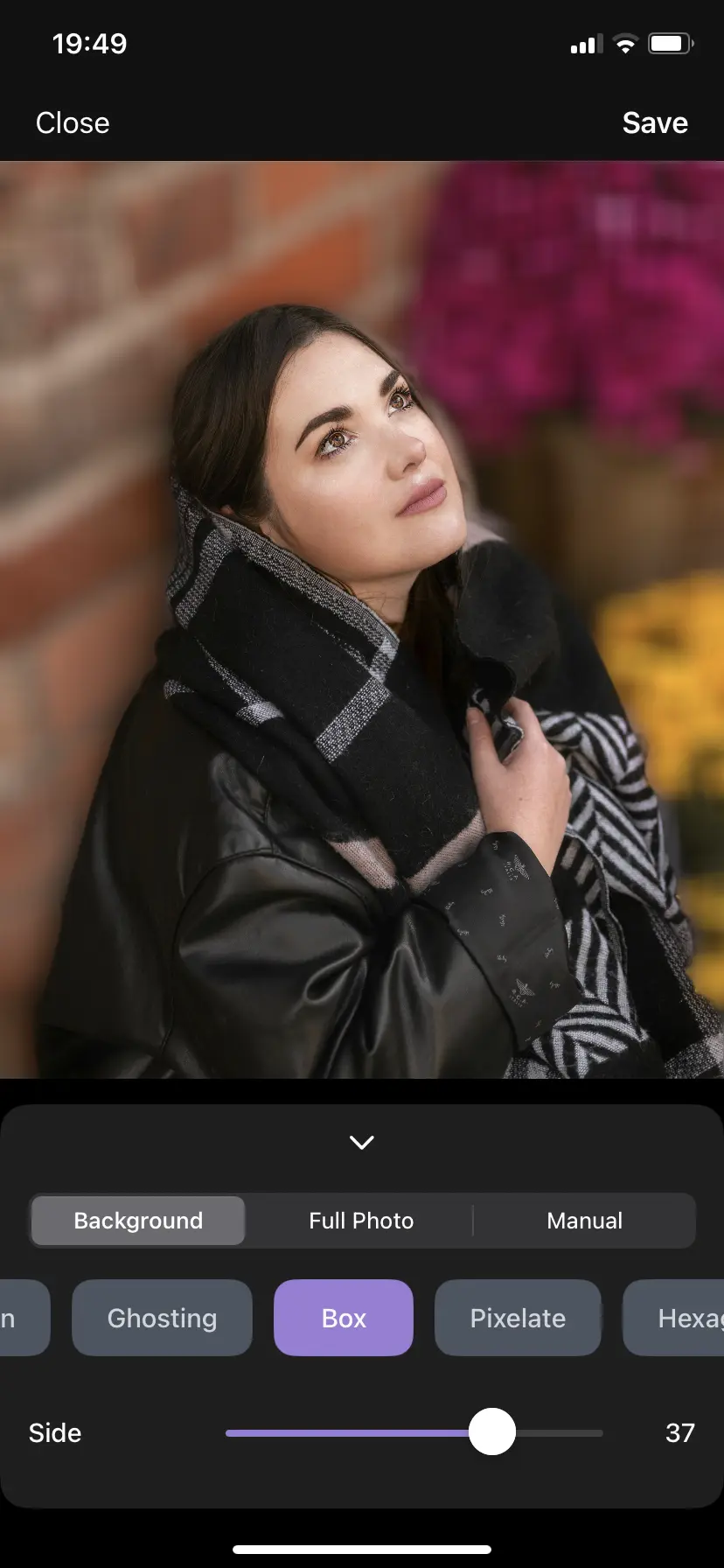
Portrait mode only works while you take the picture. How to Blur Photo blurs the background, faces, or any part of a photo that’s already on your iPhone — in seconds, on-device.
- Free to download
- Works on photos you already took
- No uploads — runs on your iPhone
- iOS 18.6 or later
Free on the App Store
Download How to Blur Photo
The iPhone app that blurs backgrounds, faces, and any part of a photo — after you take it.

- Price
- Free
- Requires
- iOS 18.6+
- Category
- Graphics & Design
- Languages
- 30+
Basic background blur is free. Advanced styles and tools are optional in-app purchases.
- Background blur with automatic subject detection — no Portrait mode needed
- Face blur for group shots and street photos — no Apple Intelligence required
- Manual brush for text, license plates, or any part of a picture
- Gaussian, Motion, Ghosting, Box, Pixelate, Hexagonal and Crystallize styles
- Processed on your iPhone — photos are never uploaded
What it looks like
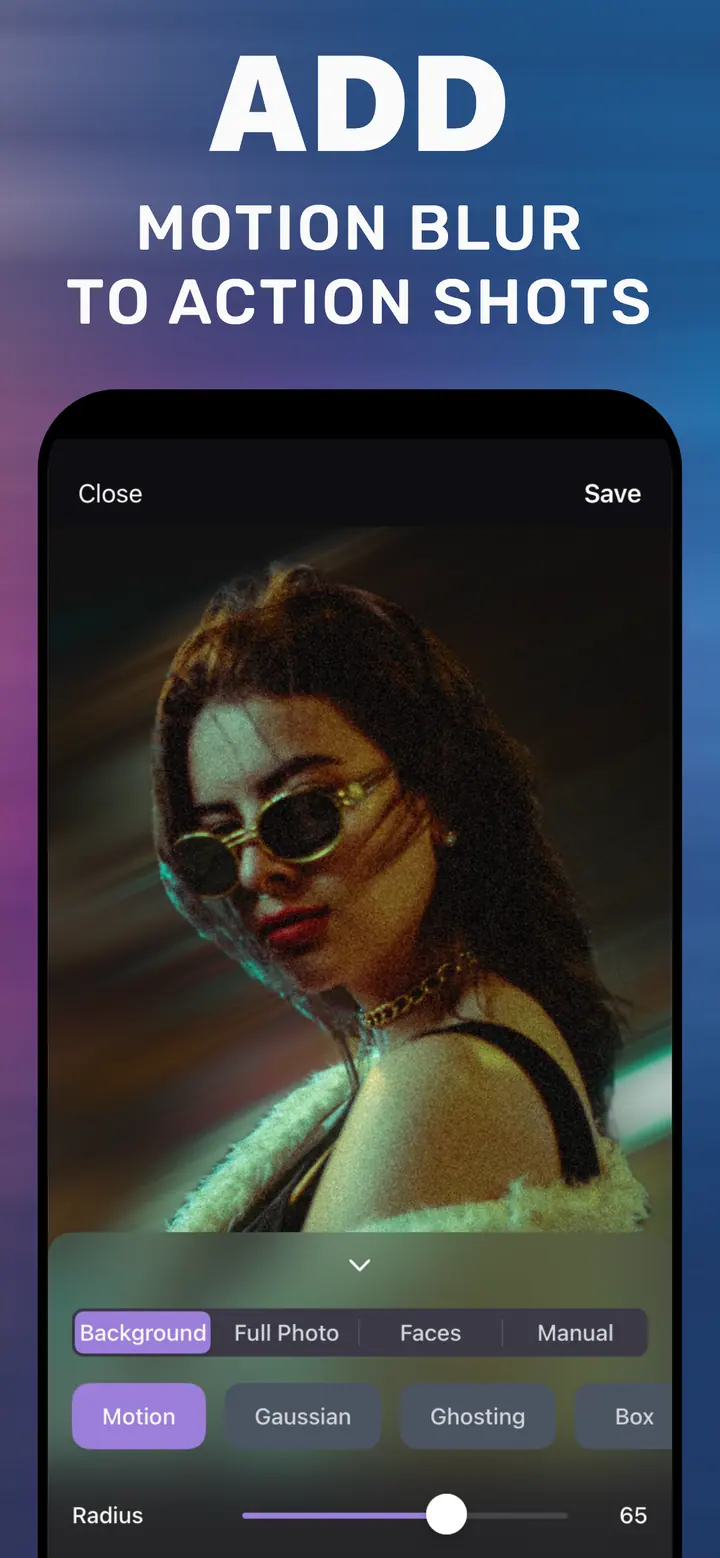
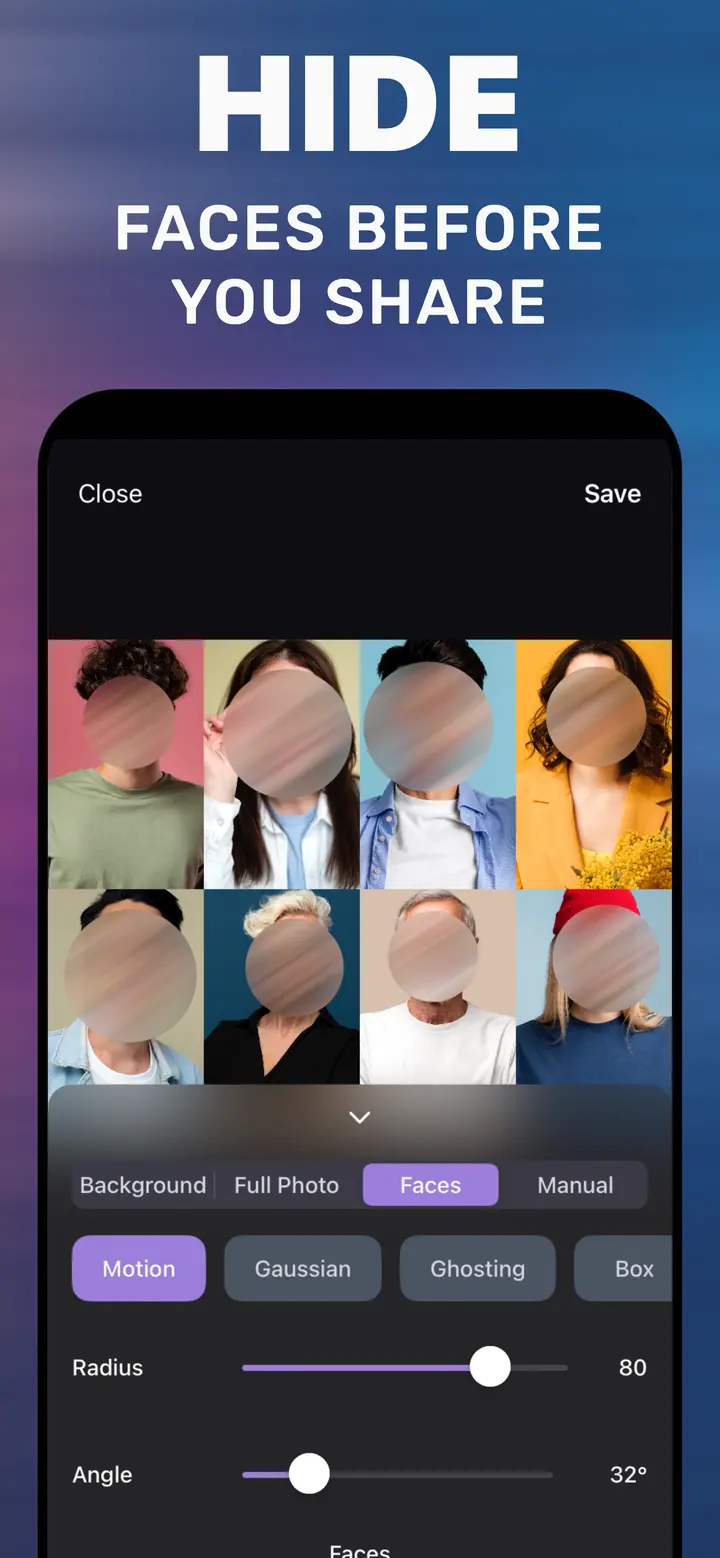
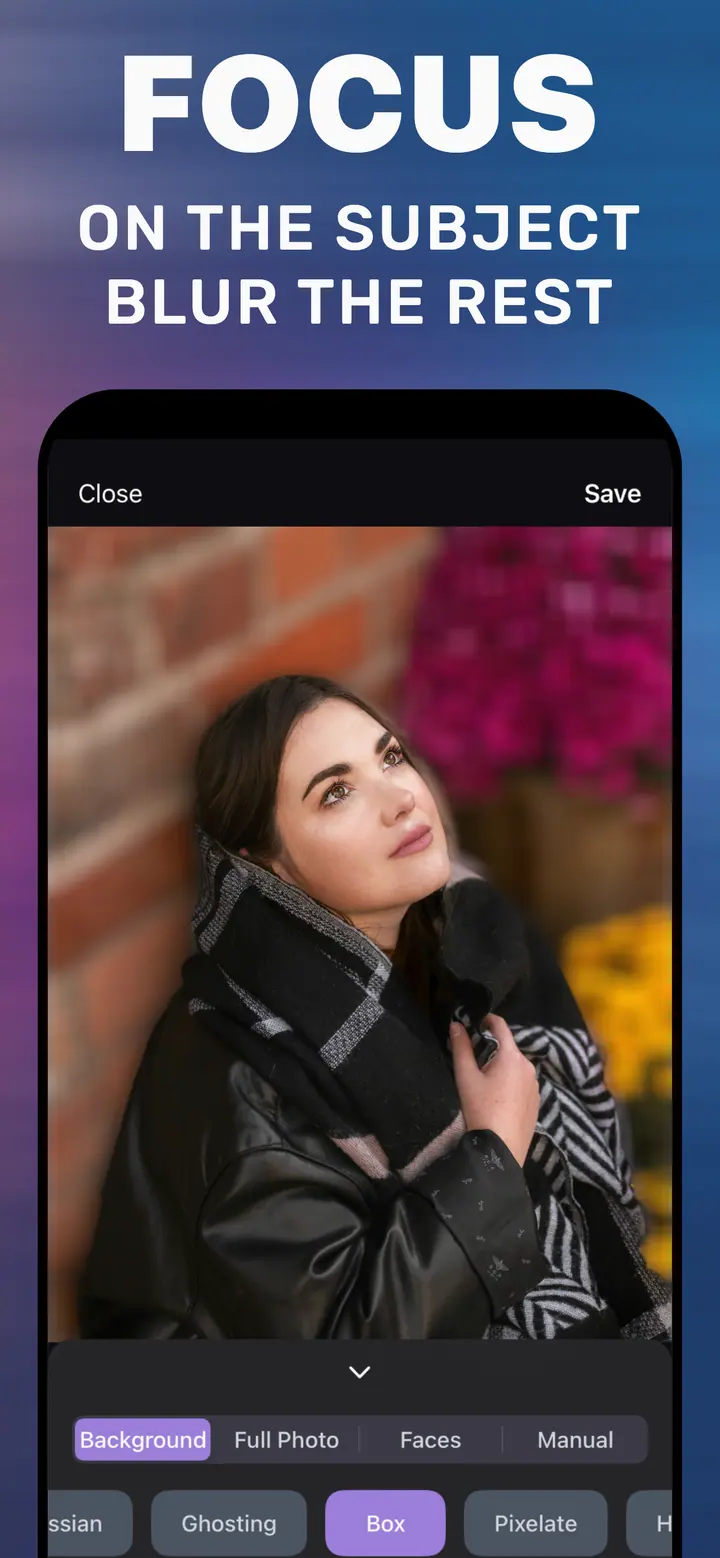
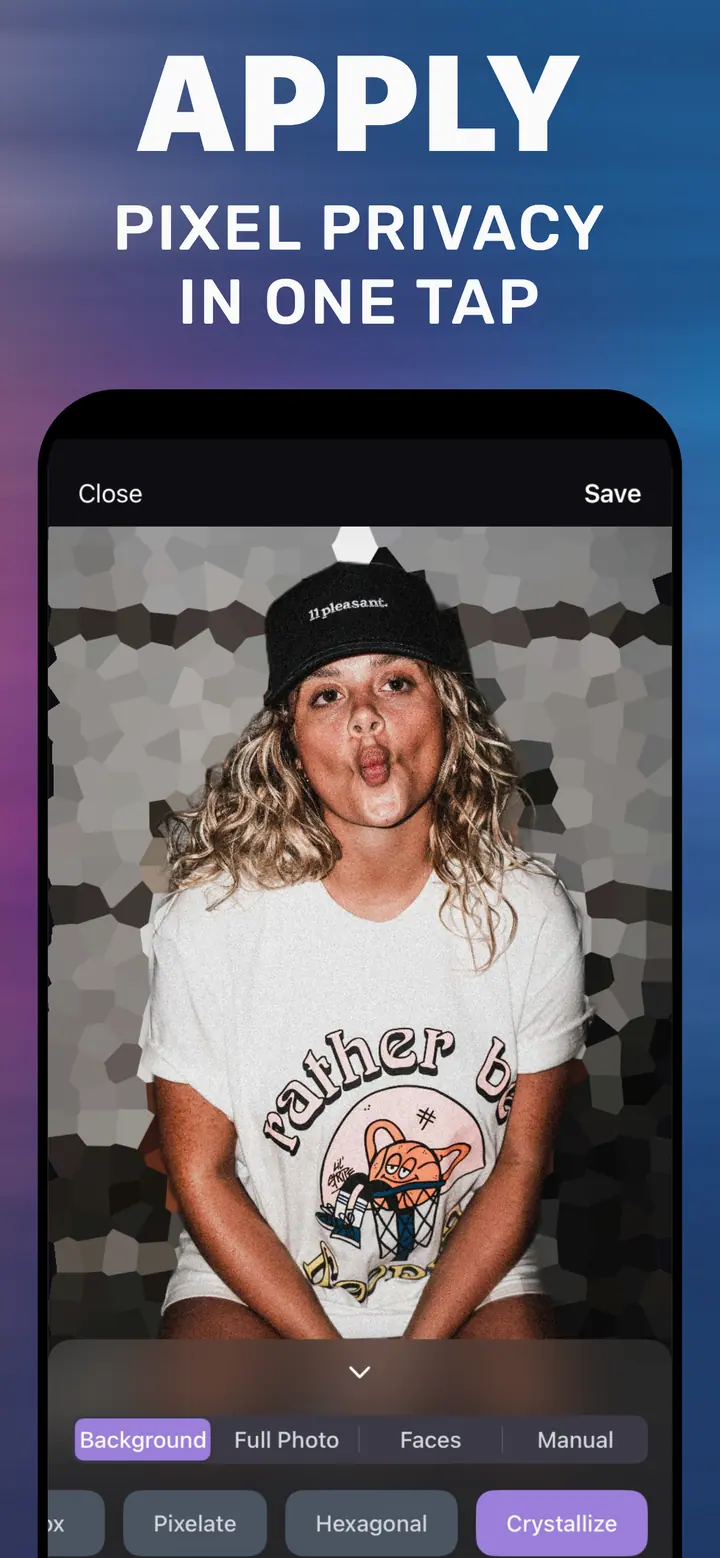
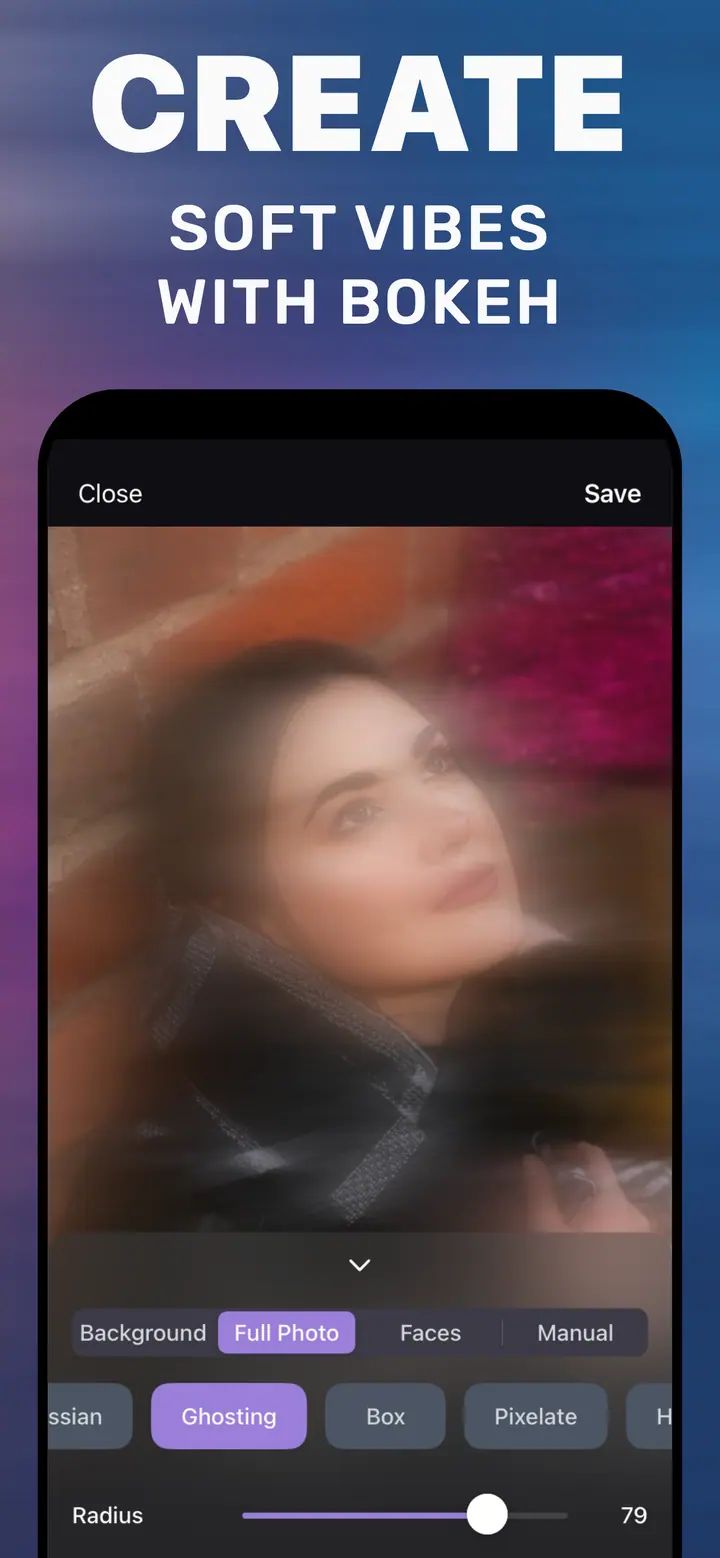
Real App Store screenshots — motion blur, face privacy, background focus, pixel privacy, and soft bokeh-style looks.
Three steps
How to blur the background of a photo on iPhone
No reshoot, no desktop editor. Open the photo you already have, confirm the subject, save.
-
Download How to Blur Photo
Free on the App Store for iPhone (iOS 18.6 or later). Open any photo in your library — a regular shot, a selfie, a screenshot, or one someone sent you.
-
Choose what to blur
Background keeps the subject sharp automatically. Faces hides every detected face. Manual lets you brush over any area. Full Photo softens the whole image.
-
Pick a style, drag Radius, save
Gaussian for a lens look, Motion for speed, Pixelate for privacy. Preview live, then save to Photos — nothing leaves your iPhone.
Four modes, one slider
- Gaussian
- Motion
- Ghosting
- Box
- Pixelate
- Hexagonal
- Crystallize
Step-by-step guides
Blur a background, hide a face, cover a license plate or text, or soften a whole photo — each guide shows the exact taps on iPhone.
Blur the background
Sharp subject, soft background — on photos you already took.
- How to blur background on iPhone Portrait mode only works while you shoot. Here is how to blur the background of a photo that is already in your camera roll.
- Blur background of a photo Subject sharp, background soft — in three taps, on any photo already on your iPhone.
- Blur photo background for posts and profiles Make the person pop for Instagram, LinkedIn, or a dating profile — blur the background of a photo you already took.
- How to make the background blurry on iPhone Beginner walkthrough: what “blurry background” means, what strength to pick, and how to do it on a photo you already have.
- Best app to blur background on iPhone? Portrait mode, Markup, Clean Up, web tools, or a dedicated app — an honest comparison of what each can do with a photo you already took.
Hide faces, text, and plates
Privacy blur before you share.
- How to blur faces in a photo Hide faces before you share a group shot — automatic face detection, no Apple Intelligence hardware required.
- How to blur part of a picture on iPhone Photos has no blur brush. Here is how to blur just one area — a name, a house number, a person in the crowd — by painting over it.
- How to blur text in a photo or screenshot Addresses, names, order numbers, chat bubbles — make text unreadable before you share, on iPhone, without uploading anything.
- How to blur a license plate in a photo Selling a car or posting a road trip? Blur the plate on iPhone in three taps before the photo goes online.
- How to pixelate a photo on iPhone Pixel privacy in one tap — pixelate faces, text, or the whole image with an adjustable block size.
Blur styles
Motion, gaussian, and bokeh looks.
- Motion blur effect on photos Add speed to a still photo: directional blur behind a runner, a car, or a skater, with Radius and Angle control.
- Gaussian blur on iPhone The soft, lens-like blur behind every good portrait — what it is and how to apply it to the background or the whole photo.
- Bokeh effect on iPhone photos The creamy, out-of-focus background of a portrait lens — how to get the look on a photo you already took.
Blur any photo or picture
Whole image, screenshots, saved pictures.
- How to blur a photo on iPhone Blur the whole picture or just the background — the two options explained, with the taps for each.
- How to blur a picture on iPhone Screenshots, saved images, pictures someone sent you — how to blur any picture on iPhone, including the parts you choose.
- How to make a photo blurry Soften the whole image for wallpapers, story backgrounds, or a dreamy look — on iPhone, in one slider.
Frequently asked questions
Quick answers about blurring photos on iPhone. Each one links to a full guide.
How do I blur the background on iPhone after taking the photo?
Open the photo in How to Blur Photo, keep the Background tab selected so the subject is detected automatically, choose Gaussian, drag Radius until the background is as soft as you want, and tap Save. It works on any photo in your library — Portrait mode is not required.
Learn more →Can the iPhone Photos app blur the background of an existing photo?
Only if the photo was captured in Portrait mode, using the f-number control in Edit. Normal photos, selfies without Portrait, screenshots, and received images have no depth data, so Photos offers no background blur for them. That is what this app is for.
Learn more →How do I blur faces in a photo on iPhone without Apple Intelligence?
Tap the Faces tab in How to Blur Photo. Every face in the frame is detected and blurred at once; choose Pixelate or Gaussian and set Radius. It runs on any iPhone with iOS 18.6 or later — no Pro model or Apple Intelligence needed.
Learn more →How do I blur just part of a picture on iPhone?
Use the Manual tab: brush over the area — a name, a house number, a person in the background — pick a style, set Radius, and Save. Only the painted region is blurred. Photos’ Markup can only cover areas with shapes.
Learn more →How do I blur text or a license plate in a photo?
Open the image, tap Manual, choose Pixelate or Box, brush over the text or plate, and raise Radius until no character is readable when you zoom in. Then Save and share the exported copy, not the original.
Learn more →How do I add a motion blur effect to a photo?
Tap the Motion style on the Background tab. Radius sets how long the streaks are and Angle sets their direction; match the angle to the way the subject is moving. The subject stays sharp while the background streaks.
Learn more →What is the difference between gaussian blur and bokeh?
Gaussian is a smooth, even blur — the closest software match to a lens out of focus. Bokeh describes how out-of-focus highlights render. On the Background tab, Gaussian or Ghosting at a higher Radius gives the bokeh look on backgrounds with lights.
Learn more →How do I make a whole photo blurry on iPhone?
Tap Full Photo instead of Background, choose Gaussian or Ghosting, drag Radius, and Save. It is the quickest way to make a soft wallpaper or a story background from any picture.
Learn more →Is How to Blur Photo free?
Yes. It is free to download and basic background blur is included. Advanced styles and tools are available as optional in-app purchases.
Learn more →Are my photos uploaded when I blur them?
No. The App Store listing states photos are processed on your device and are not uploaded to external servers. The app works without an internet connection.
Learn more →Which iPhones does it work on?
Any iPhone running iOS 18.6 or later. It is iPhone-only (no iPad version) and available in English and 30 other languages.
Learn more →How do I pixelate a face or part of a photo?
Choose Faces (for people) or Manual (for an area), tap the Pixelate style, and drag Radius — it controls block size. Use blocks larger than an eye or a letter for real privacy.
Learn more →
Free on the App Store
Blur the background of a photo you already took
Open any shot from Recents, let the app find the subject, drag one slider, and save. Faces, motion, and full-photo blur are in the same app.
No uploads · iPhone with iOS 18.6 or later