How to blur part of a picture on iPhone
Short answer
To blur part of a picture on iPhone, open it in How to Blur Photo, tap the Manual tab, brush with your finger over the area you want hidden, choose Pixelate or Gaussian, drag Radius until the detail is unreadable, and tap Save. The iPhone Photos app has no blur brush; Markup can only cover an area with a solid shape.
 Free · No uploads · Works on photos you already took
The most common “blur” question on Apple’s own forums is about blurring a specific part of a picture: an address in a screenshot, a stranger in the background, a credit card on a table, a child’s school badge. Photos cannot do it — Markup draws shapes, and Clean Up (on Apple Intelligence iPhones) is designed to remove objects, not blur them. Here is what actually works, using the Manual mode in How to Blur Photo.
Built into iPhone
The built-in workarounds and their limits
Markup (Photos → Edit → pen icon → + → Add Shape) places a filled rectangle or circle over the area. It hides the content, but it looks like a censor bar and, if you use the highlighter or a low-opacity shape, the detail underneath can still be read. On Apple Intelligence iPhones, Clean Up removes what you brush over, which can leave odd artefacts and does not work on older devices. Neither gives you an actual blur with adjustable strength.
Manual mode: a blur brush for any region
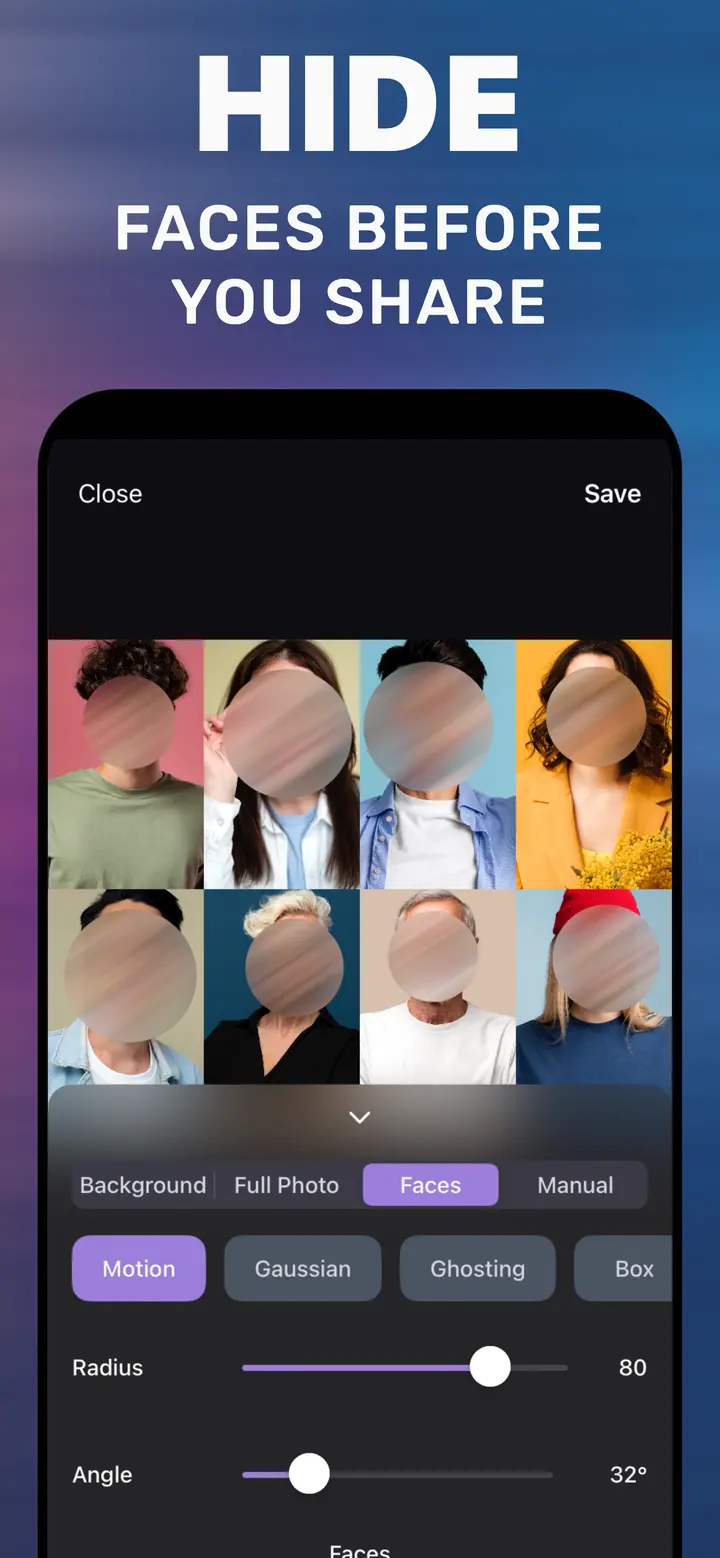
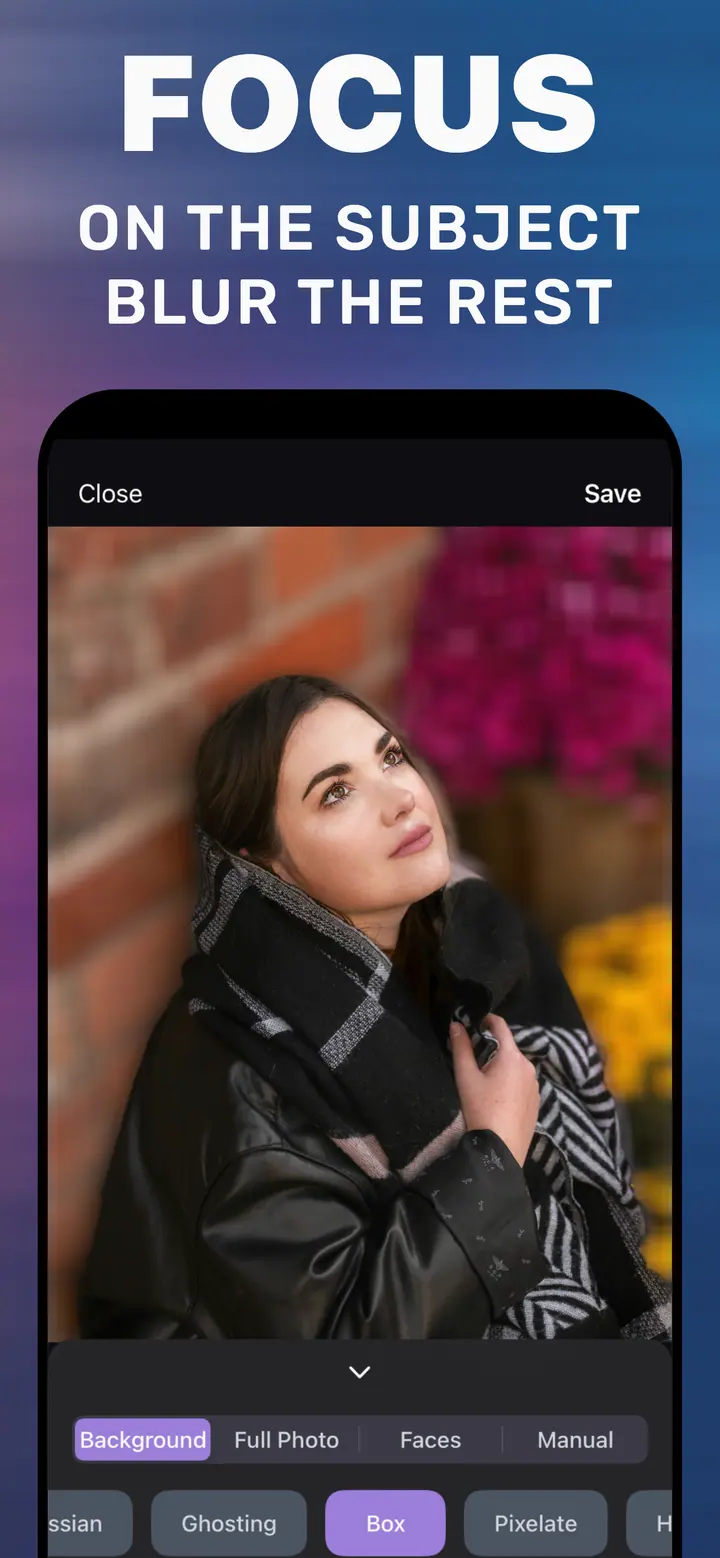
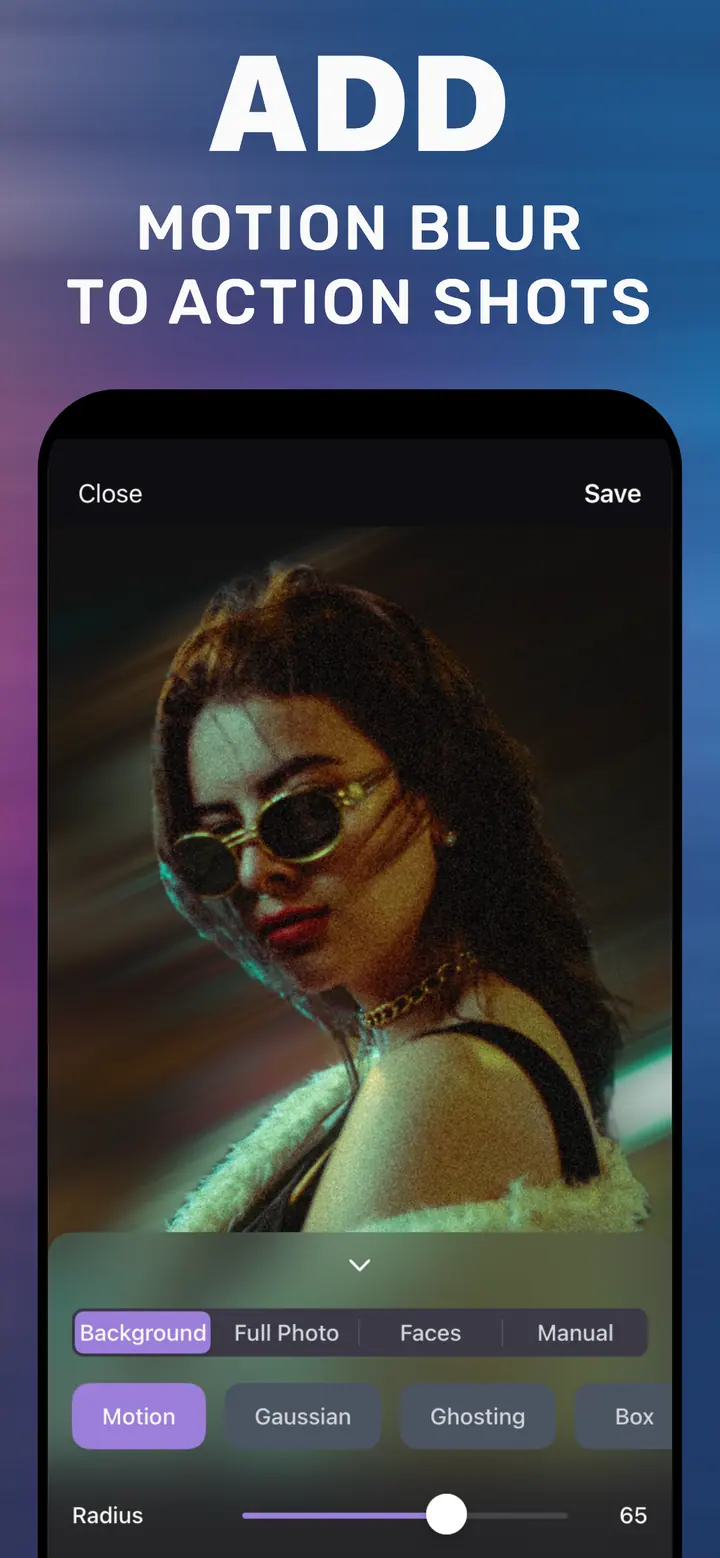
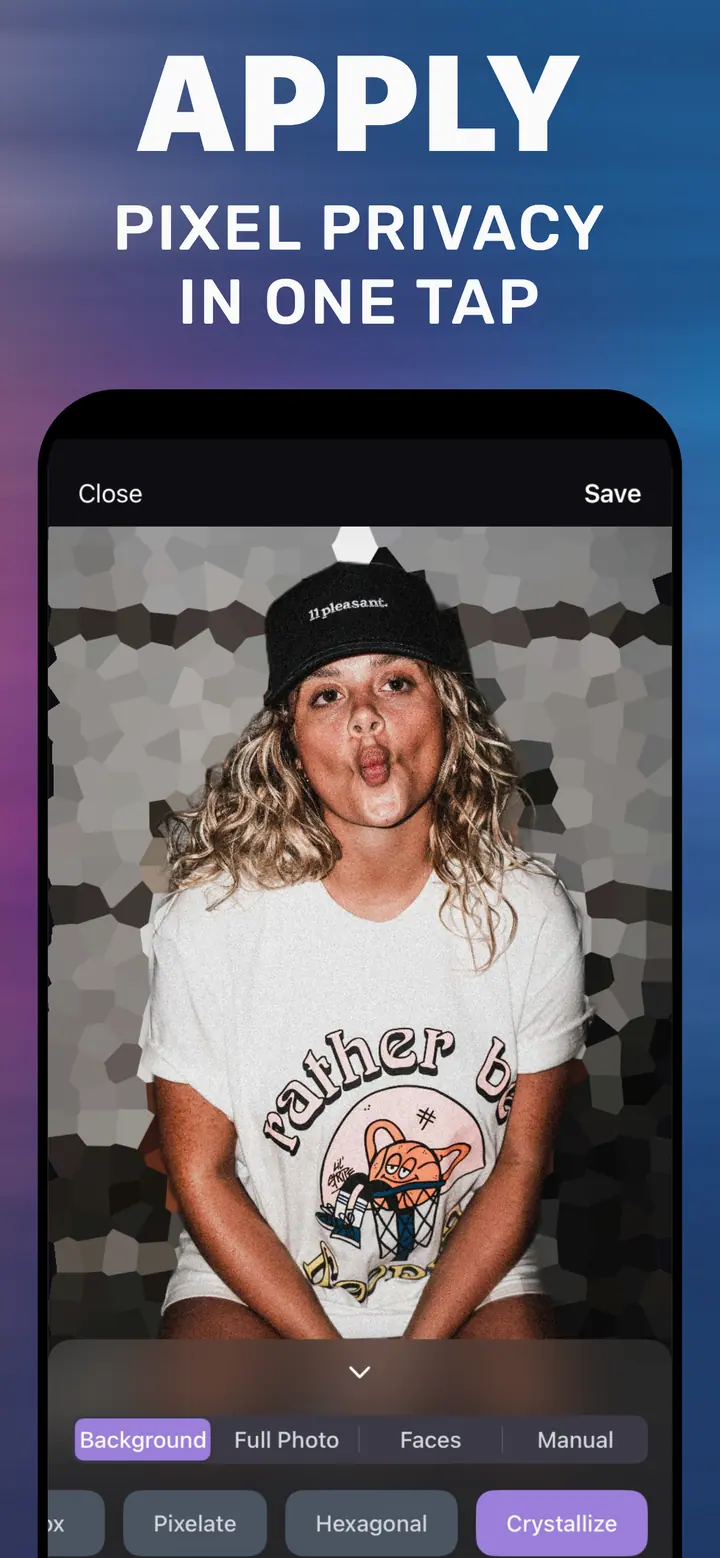
How to Blur Photo’s Manual tab turns your finger into a blur brush. Paint over the region; only the painted area is affected. The style chips decide what kind of blur — Pixelate and Box make text unreadable with a clean, deliberate look; Gaussian gives a soft blur that suits faces and objects; Crystallize and Hexagonal are stylised. Radius controls strength, and the live preview shows exactly what will be saved.
Because you are painting rather than selecting, irregular shapes are easy: a licence plate at an angle, a name badge, a reflection in a window.
Screenshots, documents, and chats
For text, use Pixelate or Box with a Radius high enough that letters are not distinguishable when you zoom in. For a person or object in the background, Gaussian at a moderate Radius looks more natural. In both cases, zoom in before saving — a blur that looks sufficient at thumbnail size is often still readable at full size.
How to blur part of a picture in How to Blur Photo
-
Open the picture
Launch How to Blur Photo and choose the photo or screenshot.
-
Tap Manual
The Manual tab replaces automatic detection with a brush you control.
-
Brush over the area
Paint over the region to hide. Pick Pixelate or Box for text, Gaussian for faces and objects, and drag Radius until the detail is gone.
-
Zoom in, then Save
Pinch to check the area at full size, then tap Save to export the edited copy.
Download How to Blur Photo
Free · iPhone with iOS 18.6+ · No uploads
Tips
Paint a little past the edge of the text or object; a tight brush can leave a readable sliver.
Combine tabs: blur the background automatically first, then use Manual for the one detail the detector left sharp.
Share the saved copy, not the original, and delete the original from any shared album.
Frequently asked
Can you blur part of a picture in the Photos app?
No. Photos has no blur brush. Markup can cover an area with a shape, and Clean Up (Apple Intelligence iPhones only) removes objects, but neither blurs a chosen region with adjustable strength.
How do I blur out something in the background of a picture?
Open the picture in How to Blur Photo, tap Manual, brush over the object, choose a style, set Radius, and Save.
Is it free to blur part of a picture?
How to Blur Photo is free to download with basic blur included; some advanced styles and tools are optional in-app purchases.