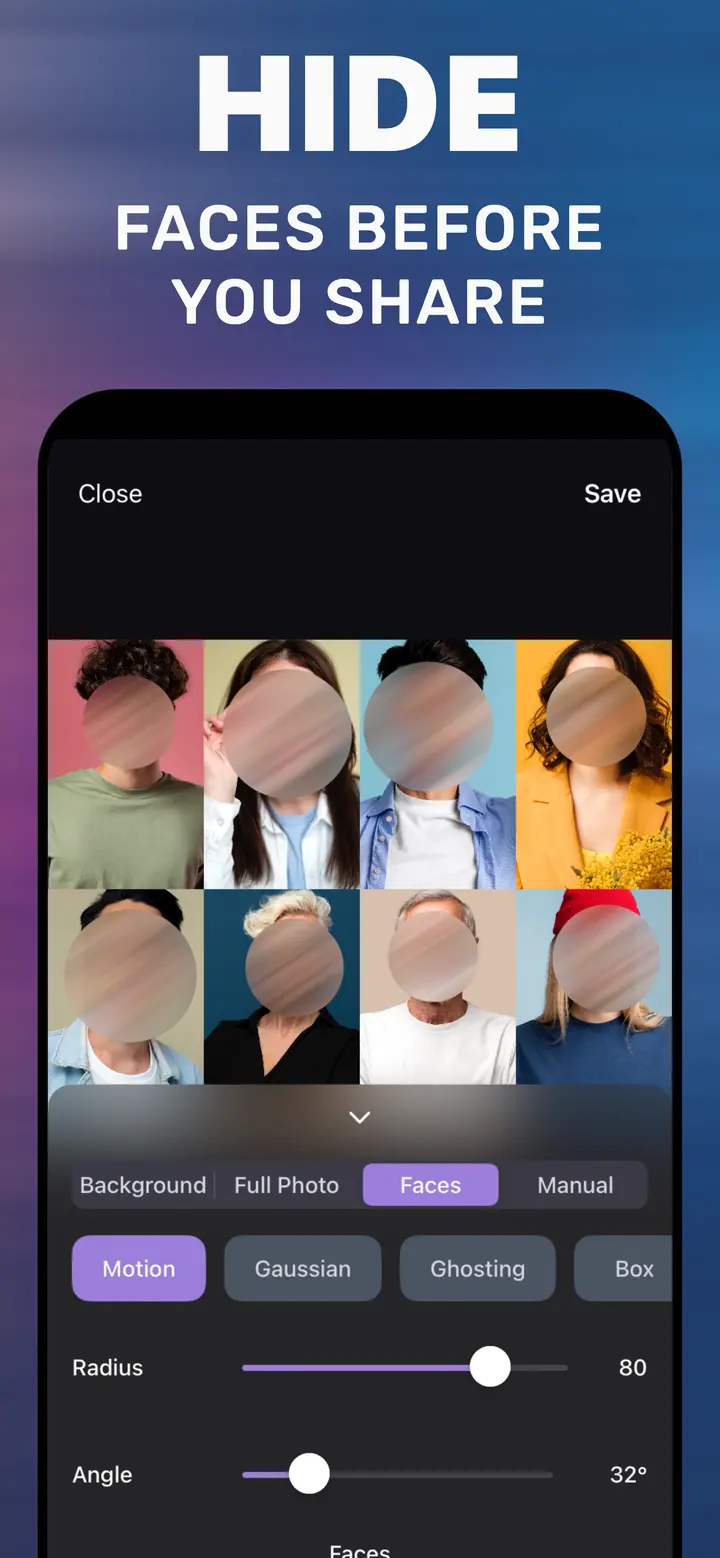
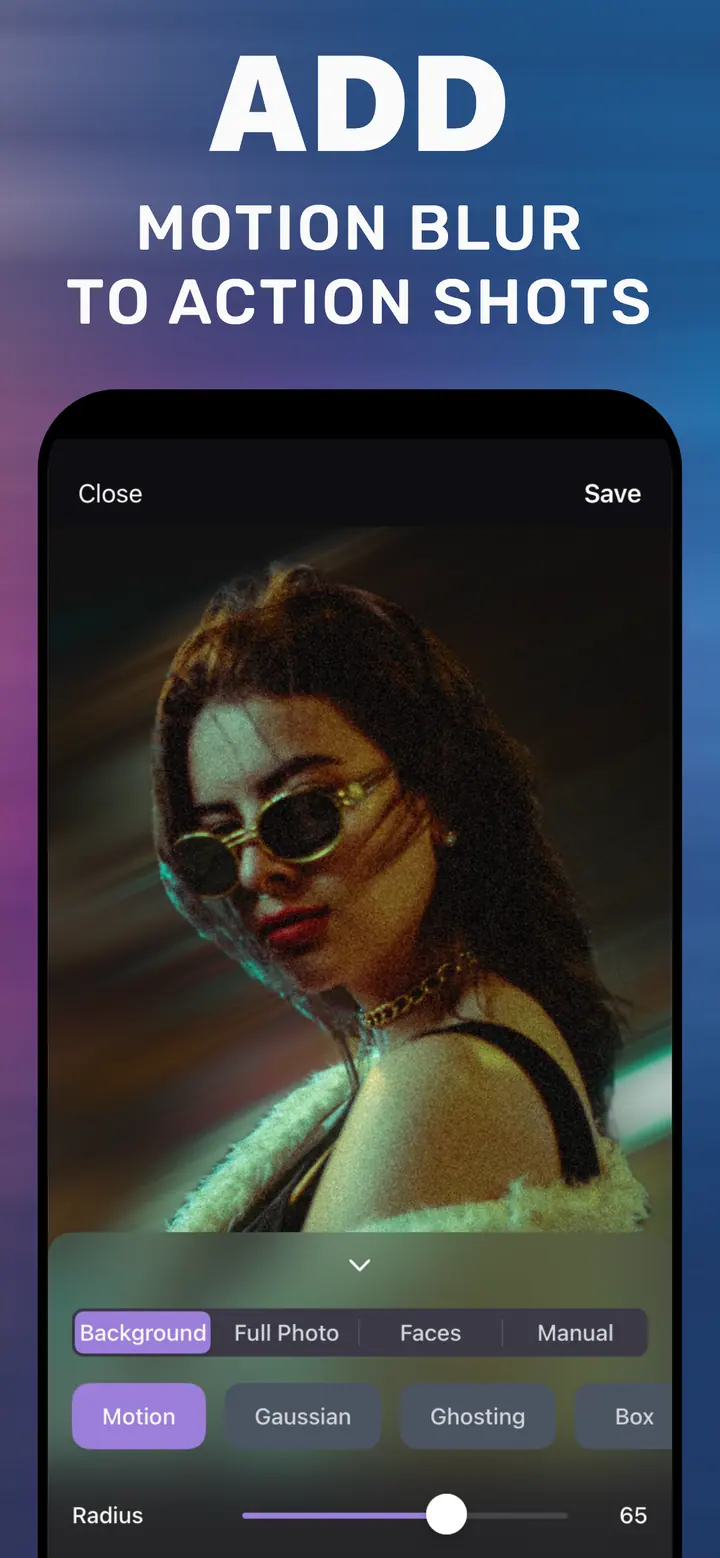
Blur photo background on iPhone for social posts and profile pictures
Short answer
To blur a photo background for a post or profile picture, open the image in How to Blur Photo, keep the Background tab active so the person is kept sharp, choose Gaussian, set Radius between 35 and 60 for a natural depth-of-field look, and tap Save. The blurred copy goes straight to your library, ready to upload.
 Free · No uploads · Works on photos you already took
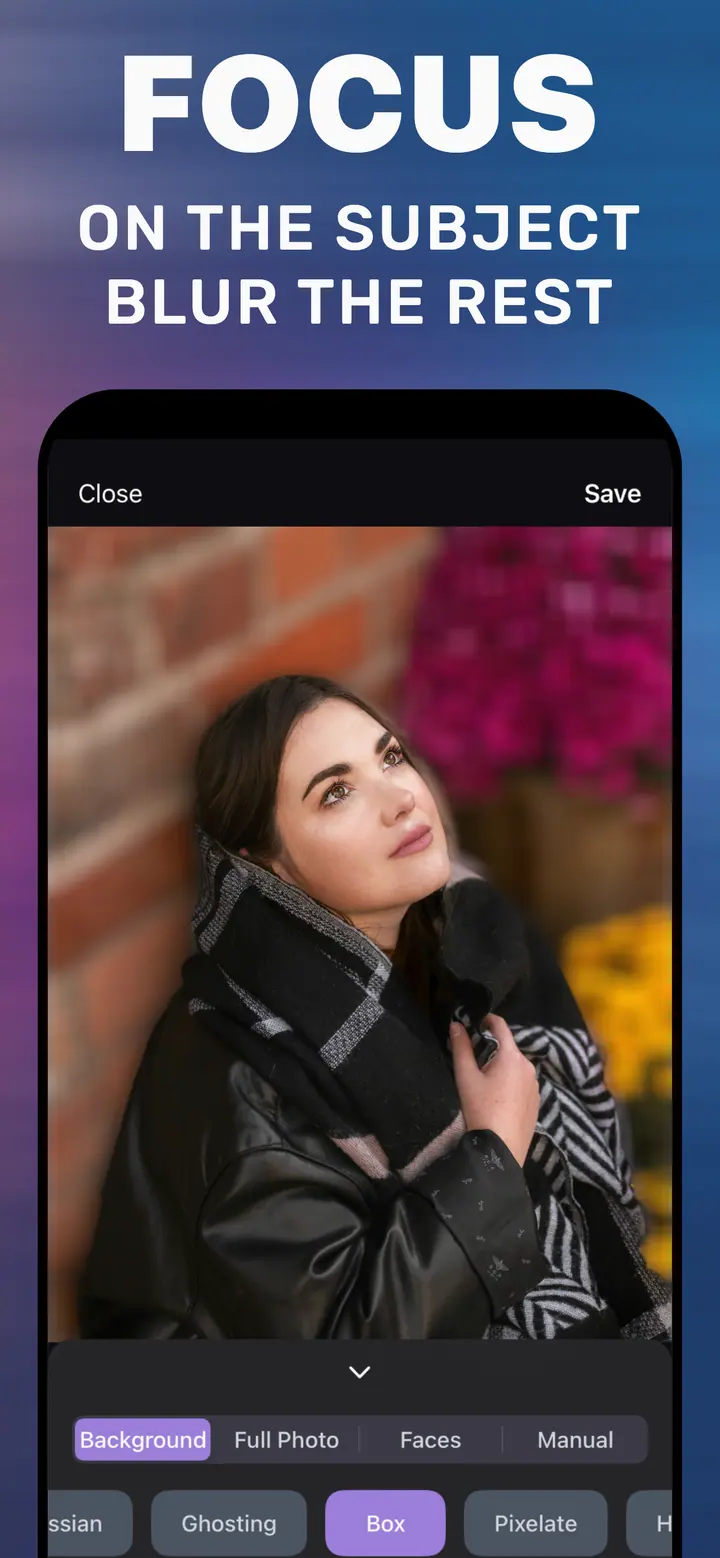
A blurred photo background is the fastest way to make a phone snapshot look intentional. Feeds are full of Portrait-mode photos, so a flat, everything-in-focus picture stands out for the wrong reason. This guide is about the social-media use case: what strength to use, which style flatters faces, and how to do it on the iPhone in under a minute.
Built into iPhone
Can Instagram or Photos do this?
Instagram’s editor has no background-blur tool for photos; its blur effects apply to the whole frame or to a radial area. Photos on iPhone only adjusts background blur on Portrait-mode captures. LinkedIn and most dating apps offer no editing at all. So the blur has to happen before you upload, in an editor that understands where the person is.
Which blur style looks right on a face
Gaussian at a moderate Radius is the one that reads as “nice camera”. Bokeh-style softness behind a face is what Portrait mode imitates, and Gaussian gets closest. Motion blur behind a person suggests movement and suits street or gym photos. Ghosting and Crystallize are creative looks for story posts rather than for a profile picture.
For LinkedIn or a CV photo, keep the blur restrained (Radius 30–45) so the setting is still recognisable as an office or outdoors. For Instagram, go heavier (50–70) — feeds are viewed small and subtle blur disappears.
Group photos and multiple people
The Background tab treats detected people as the subject. If you want everyone sharp, that is what you get. If you want only yourself sharp and the rest of the group soft, use the Manual tab and brush over the other people; Radius applies to everything you paint.
How to blur a photo background for a post
-
Open the photo in How to Blur Photo
Pick the picture you plan to post. Selfies, full-length shots, and photos someone else took of you all work.
-
Keep Background selected and choose Gaussian
The person is masked automatically. Gaussian gives the portrait-lens look that suits profile pictures.
-
Set Radius for the platform
About 40 for LinkedIn or a CV, 50–70 for Instagram and TikTok covers. Zoom in on hair to check the edge.
-
Save and upload
Tap Save. The new image is in Recents; upload it from the app of your choice as usual.
Download How to Blur Photo
Free · iPhone with iOS 18.6+ · No uploads
Tips
Crop after blurring, not before — the subject detector has more context in the full frame.
Avoid maximum Radius on portraits; a face floating on a colour field looks like a cutout.
For a series of posts, use the same Radius on every photo so the feed looks consistent.
Frequently asked
Does blurring the background reduce photo quality?
The subject keeps its original detail; only the background is processed. The saved copy is a full-resolution image, not a compressed preview.
Can I blur the background of a selfie?
Yes. Front-camera photos are handled like any other image; Portrait mode is not required.
Can I use it for a LinkedIn or passport-style photo?
For LinkedIn, yes — keep Radius low for a professional look. For passports and official IDs, do not edit the background; those photos must be unretouched.