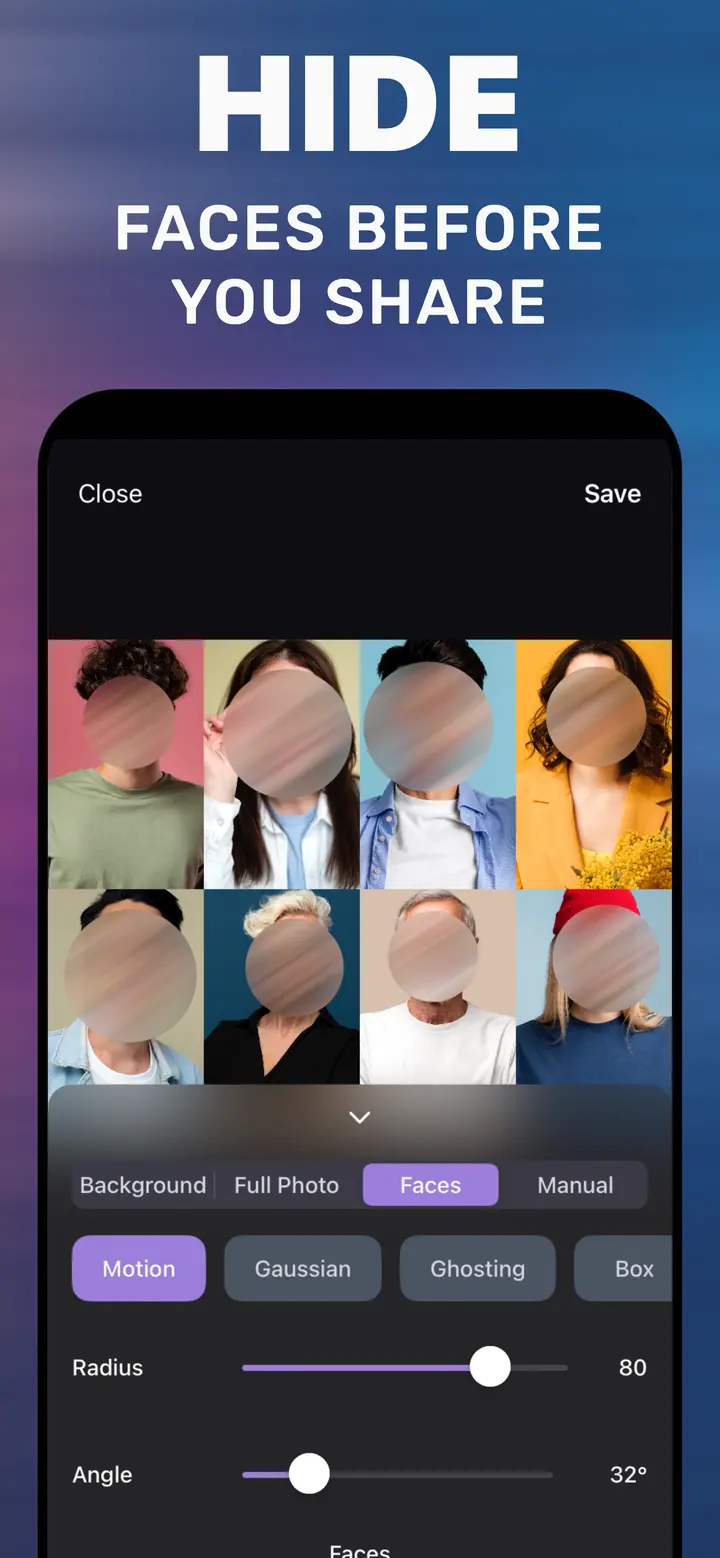
How to blur text in a photo or screenshot on iPhone
Short answer
To blur text in a photo on iPhone, open the image in How to Blur Photo, tap Manual, brush over the text, choose Pixelate (or Box), raise Radius until individual letters cannot be distinguished when zoomed in, and tap Save. Do not rely on a light blur or a Markup highlighter — both can leave text readable.
 Free · No uploads · Works on photos you already took
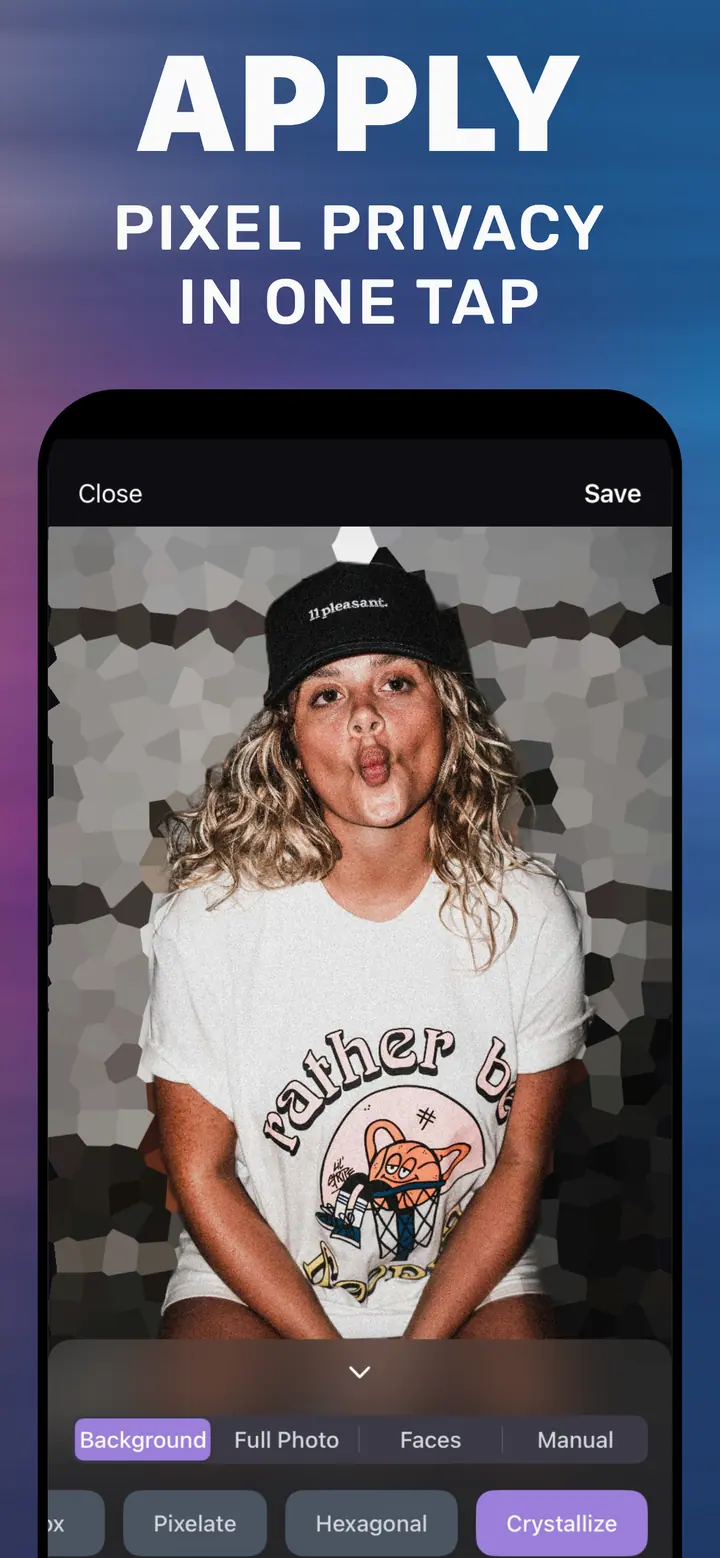
Sharing a screenshot of an order confirmation, a group chat, a ticket, or a document almost always means hiding some text first: a full name, an address, a booking reference, a phone number. Doing it properly matters because a weak blur can be read or even reconstructed. This guide shows the right way on iPhone and the settings that make text unrecoverable.
Built into iPhone
Why Markup is not enough
Markup’s pen and highlighter are semi-transparent by default, and people regularly share screenshots where the “hidden” text is legible through the stroke. A solid Markup shape at full opacity does hide text, but it looks like a redaction bar and has to be drawn and resized for each line. Clean Up on Apple Intelligence iPhones is built for objects and can produce garbled text rather than removing it.
Pixelate versus blur for text
For text, Pixelate is the better choice. It replaces the area with large blocks, so there is no residual shape to reconstruct, and it visibly communicates “this was hidden on purpose”. Box blur is a close second. Gaussian at a very high Radius also works but needs to be pushed further than people expect; at low Radius the word shapes remain readable. In every case, zoom in before saving.
Radius controls block size for Pixelate. Choose a value where a single block is larger than a letter — for typical screenshot text that means well above 50.
Whole screenshots and multiple lines
If most of a screenshot needs hiding, the Full Photo tab with Pixelate obscures everything, and you can crop afterwards to keep only the relevant part. For a few scattered lines, Manual with a wide brush stroke per line is quicker than shapes in Markup.
How to blur text in How to Blur Photo
-
Open the screenshot or photo
Launch How to Blur Photo and choose the image with the text.
-
Tap Manual and pick Pixelate
Manual gives you a brush; Pixelate makes the painted area unreadable.
-
Brush over each line and raise Radius
Paint slightly beyond the text on all sides. Increase Radius until blocks are larger than letters.
-
Zoom in and Save
Pinch to confirm nothing is legible, then tap Save to export the safe copy.
Download How to Blur Photo
Free · iPhone with iOS 18.6+ · No uploads
Tips
Hide the text before you crop; cropping first can leave part of a line at the edge.
Look for the same information elsewhere in the screenshot — URL bars, notification banners, and app headers often repeat a name or email.
Share the exported copy, not the original; the original still contains the text.
Frequently asked
Can blurred text be unblurred?
Light gaussian blur on text can sometimes be reconstructed. Pixelate with blocks larger than a letter, or a very high Radius, removes the information from the saved image. Never share the original.
How do I blur text in a screenshot on iPhone for free?
Open it in How to Blur Photo (free to download), tap Manual, choose Pixelate, brush over the text, and Save.
Is my screenshot uploaded anywhere?
No. The app processes images on the device, which is the point when the content is private.