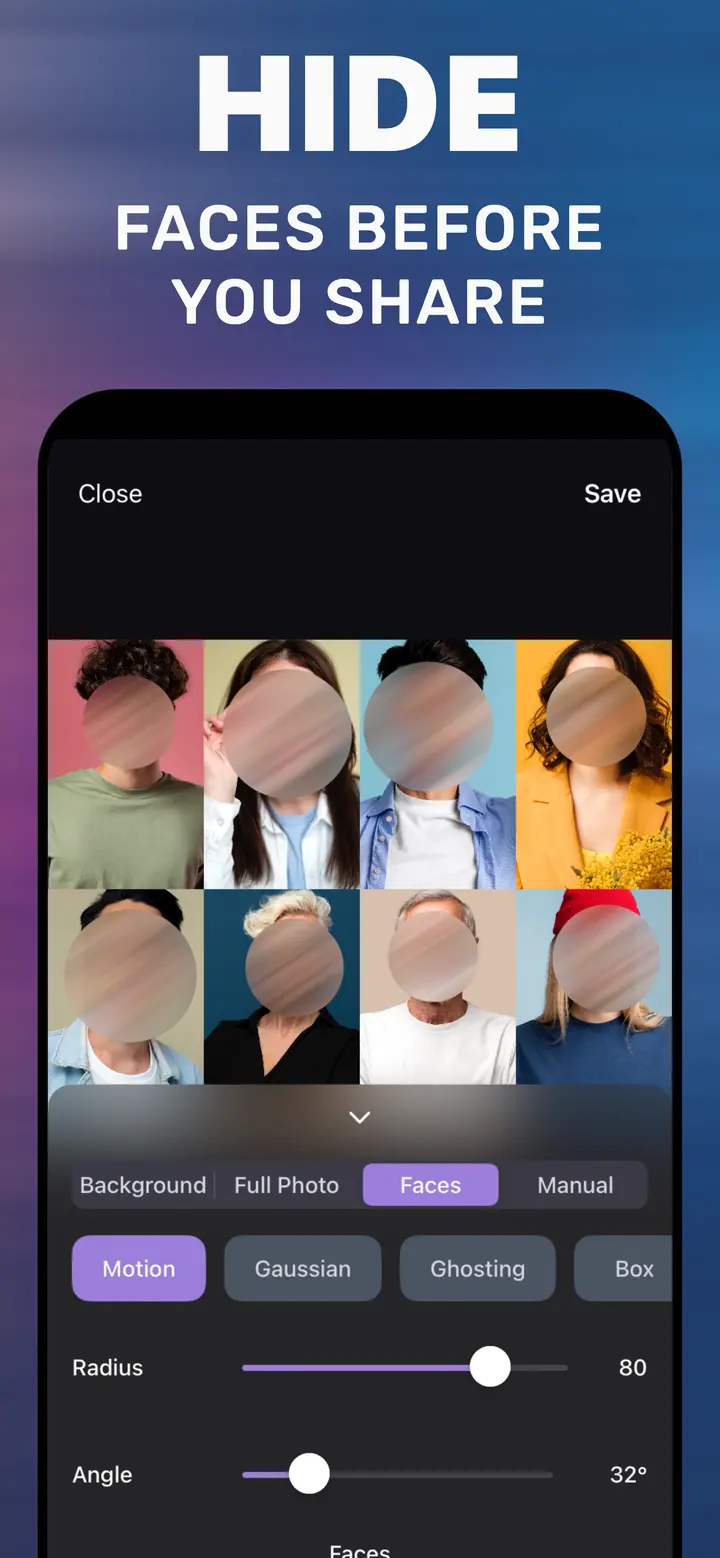
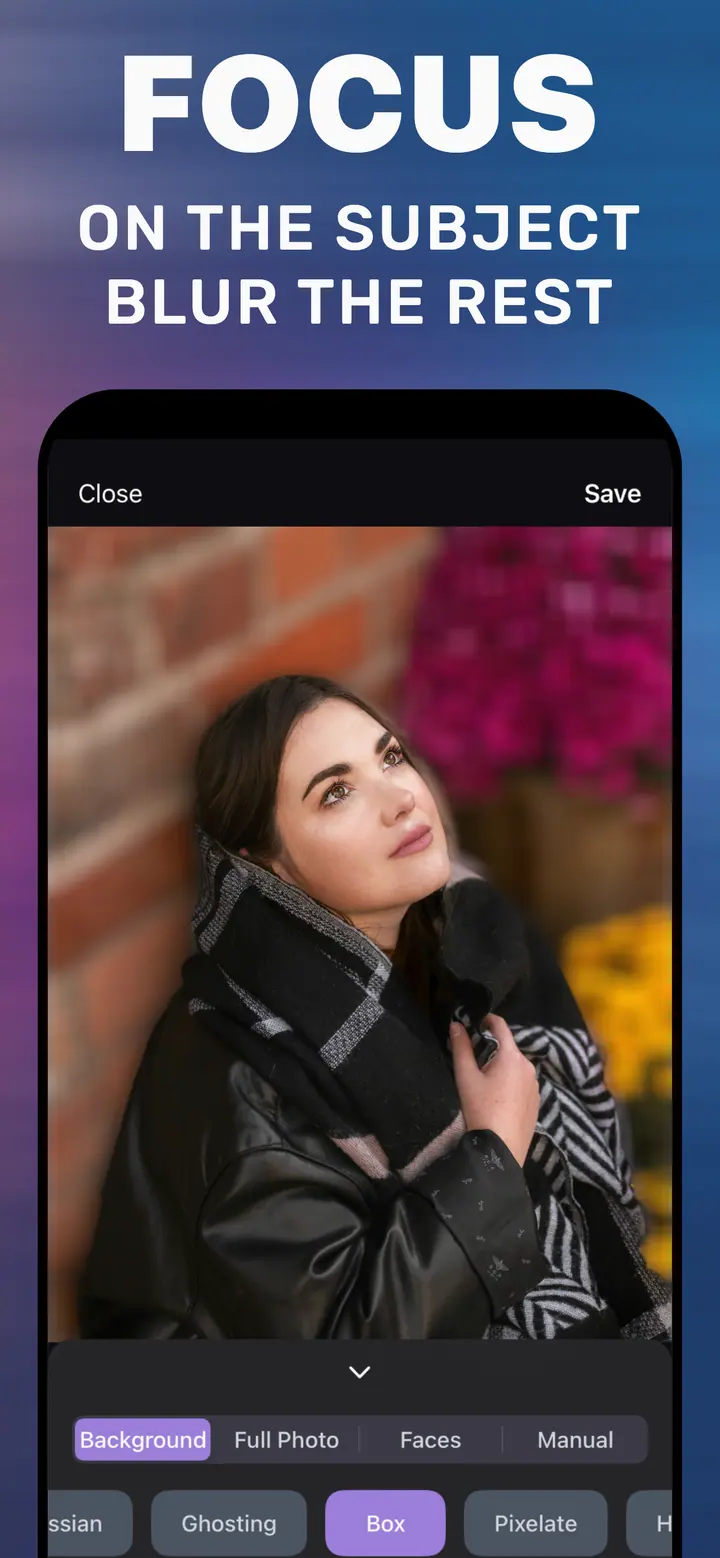
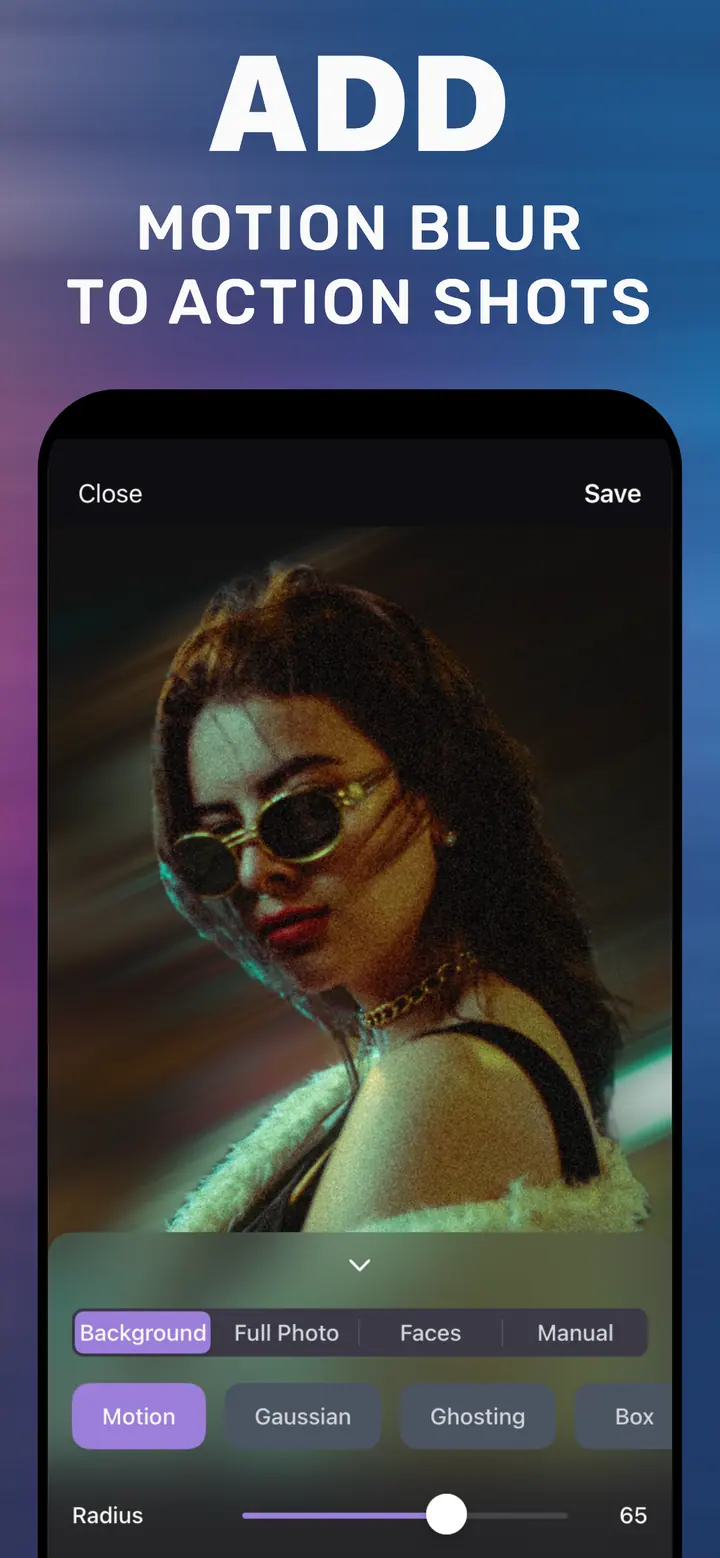
How to blur a photo on iPhone — the whole image or just the background
Short answer
To blur a photo on iPhone, open it in How to Blur Photo and choose what to blur: the Full Photo tab softens the entire image, the Background tab keeps the subject sharp and blurs what is behind it. Pick a style such as Gaussian, drag Radius to set the strength, and tap Save. Photos on iPhone has no blur tool of its own for regular photos.
 Free · No uploads · Works on photos you already took
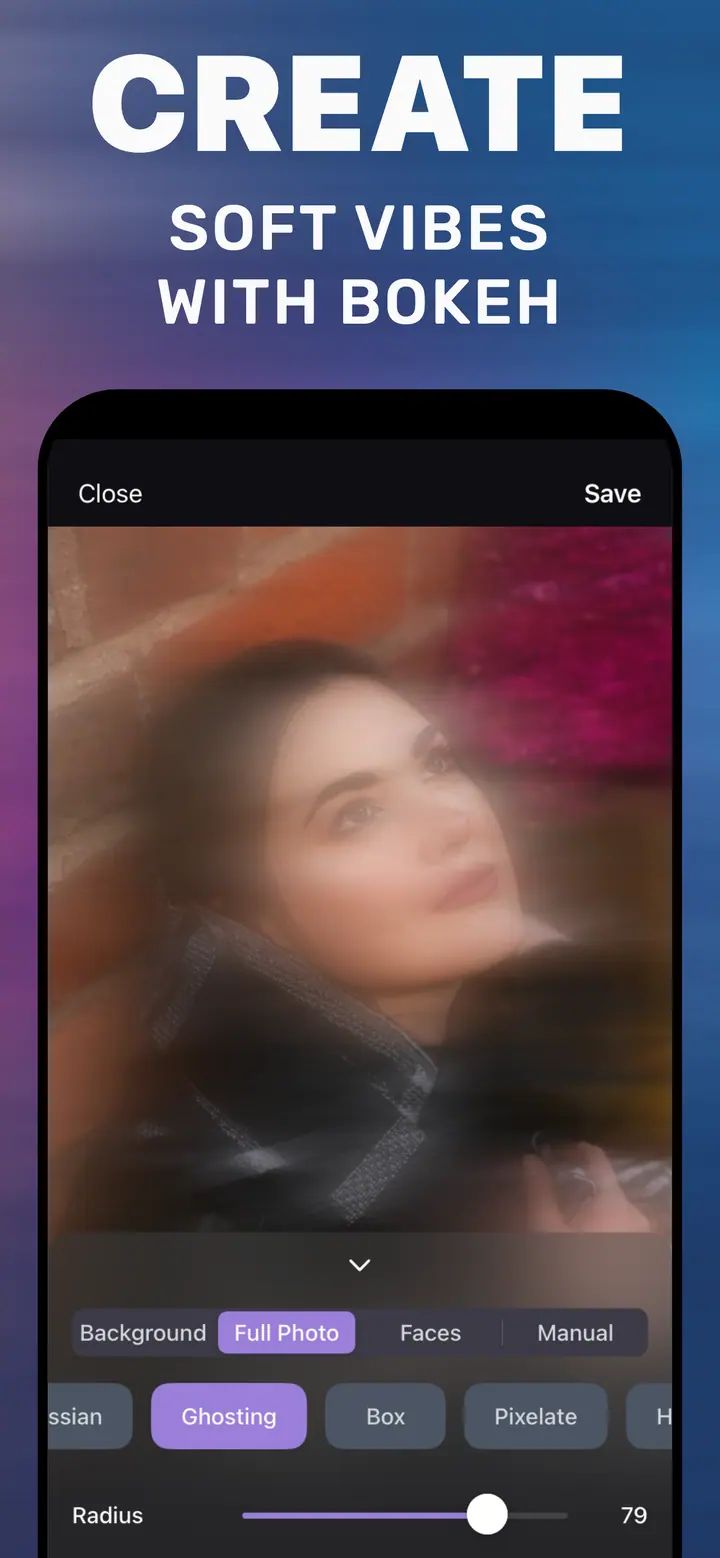
“How to blur a photo on iPhone” covers two different wishes. Some people want the entire picture soft — for a wallpaper, a story background, or to hide detail. Others want a portrait look where only the background is blurred. The built-in Photos app does neither on a normal photo, so this guide shows both in one app and explains when to use which.
Built into iPhone
What Photos can and cannot do
Photos → Edit offers exposure, colour, crop, and filters, but no blur slider for a regular photo. The only blur control is the f-number on Portrait-mode captures, and it only affects the background of those specific shots. Markup can cover parts of a picture with shapes, which hides rather than blurs. For any real blur — full image or background — you need a dedicated editor.
Which tab to use
Full Photo: the blur is applied evenly to every pixel. Use it for lock-screen wallpapers, text backgrounds, or when you want to share the mood of a picture without the detail. Background: the app detects the subject and blurs only what is behind it. Use it for portraits, product shots, and anything where a person or object should stand out.
Both tabs share the same style chips — Gaussian, Motion, Ghosting, Box, Pixelate, Hexagonal, Crystallize — and the same Radius slider. Motion adds an Angle slider for direction.
Choosing a style
Gaussian is the neutral, lens-like option and the right default. Ghosting produces a dreamy double image that suits full-photo edits for stories. Motion suggests speed. Pixelate, Box, Hexagonal, and Crystallize are stylised and are better for creative posts or privacy than for realism.
How to blur a photo in How to Blur Photo
-
Open the photo
Launch How to Blur Photo and select a picture from your library. Screenshots and downloaded images work too.
-
Choose Full Photo or Background
Tap Full Photo to blur everything, or leave Background selected to keep the subject sharp.
-
Pick a style and drag Radius
Gaussian is a safe start. Move Radius until the preview looks right; for a wallpaper go high, for a portrait stay moderate.
-
Save
Tap Save to export the blurred photo to your library.
Download How to Blur Photo
Free · iPhone with iOS 18.6+ · No uploads
Tips
For a phone wallpaper, use Full Photo with Gaussian at Radius 70–90 so icons stay readable on top.
For a portrait, use Background and stay below Radius 60.
If the app detects the wrong subject, the Manual tab lets you brush the blur exactly where you want it.
Frequently asked
Can I blur a photo in the iPhone Photos app?
Not a regular photo. Photos only adjusts the background blur of Portrait-mode captures via the f-number control. Use How to Blur Photo for any other image.
How do I blur only part of a photo?
Use the Manual tab and brush over the area. See the guide on blurring part of a picture for details.
Is the app free?
Yes, it is free to download with basic blur included; advanced styles are optional in-app purchases.