How to blur a picture on iPhone — including screenshots and images you did not take
Short answer
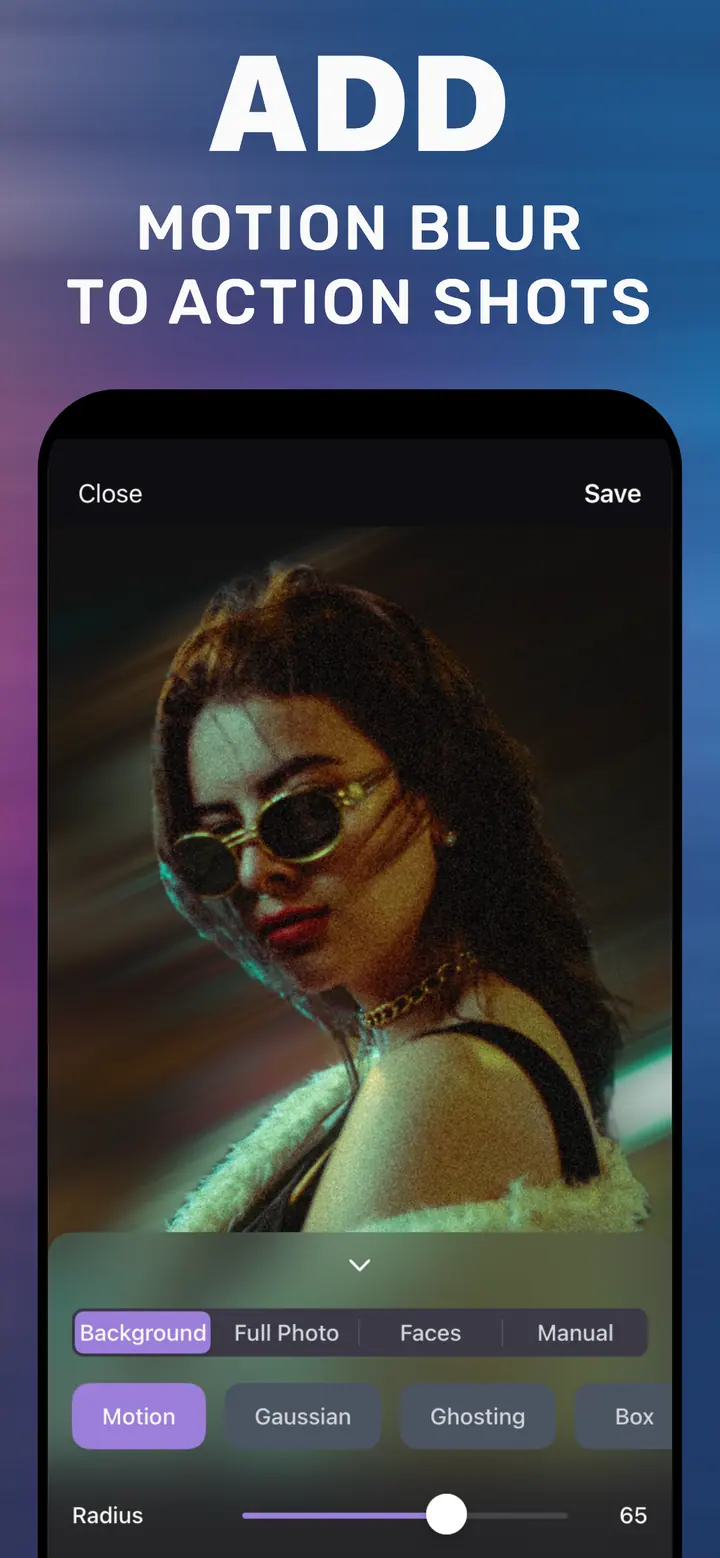
To blur a picture on iPhone, open it in How to Blur Photo and choose a tab: Full Photo blurs the whole picture, Background keeps the subject sharp, Manual lets you brush over a specific area, and Faces blurs detected faces. Set the strength with Radius and tap Save. It works on screenshots, saved images, and photos from Messages as well as camera photos.
 Free · No uploads · Works on photos you already took
A “picture” on iPhone is often not something you photographed: a screenshot of a chat, an image saved from a website, a photo a friend sent. Those files have no depth data and Photos treats them as flat images, so nothing in the built-in editor will blur them. This guide covers every kind of picture and every kind of blur — the whole thing, the background, or one specific area.
Built into iPhone
What the built-in tools do with a picture
Markup (Photos → Edit → pen icon) can draw shapes and scribbles over a picture, which is a way to hide content but not to blur it. Portrait-mode blur is unavailable on anything that was not captured in Portrait mode, which includes every screenshot and every saved image. The Clean Up tool on Apple Intelligence iPhones removes objects; it is not a blur brush.
Four ways to blur a picture in one app
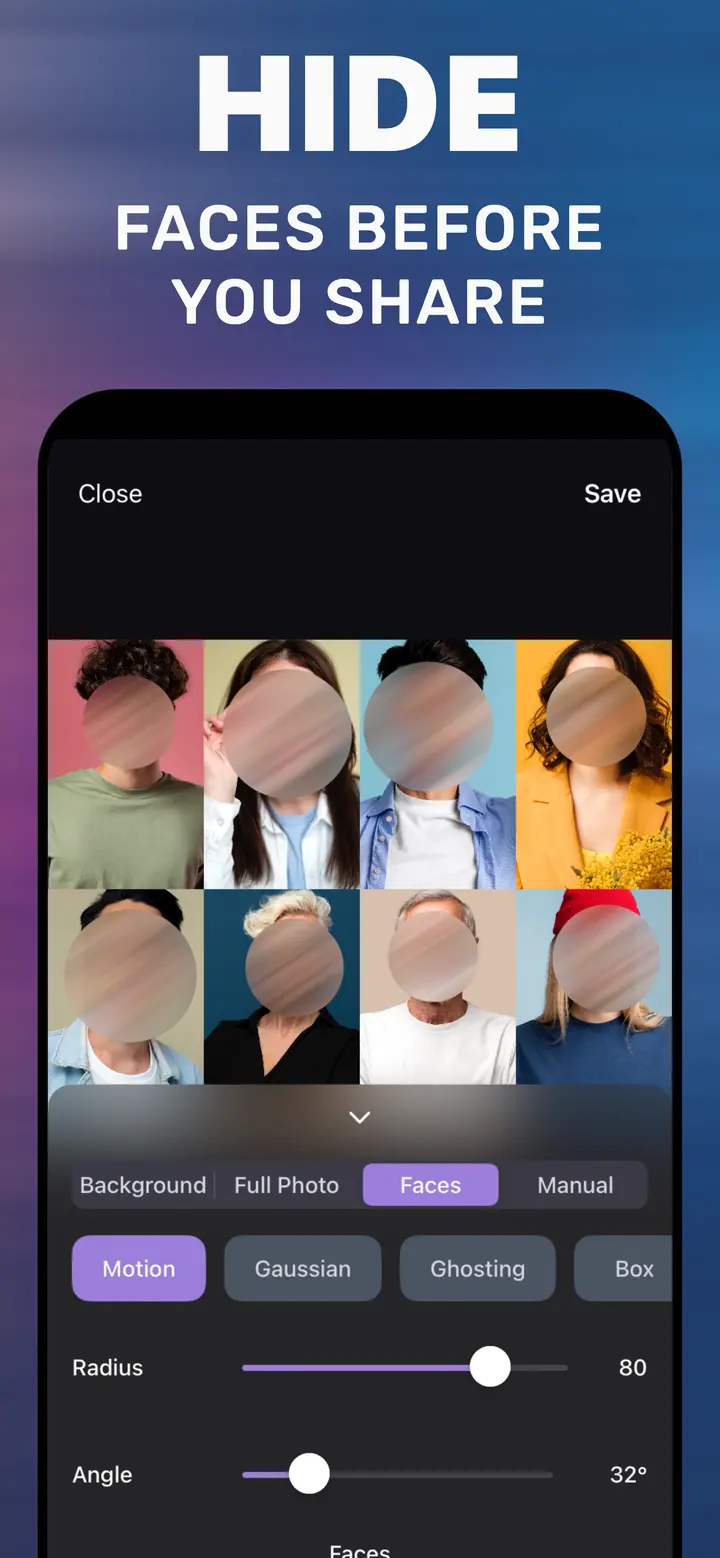
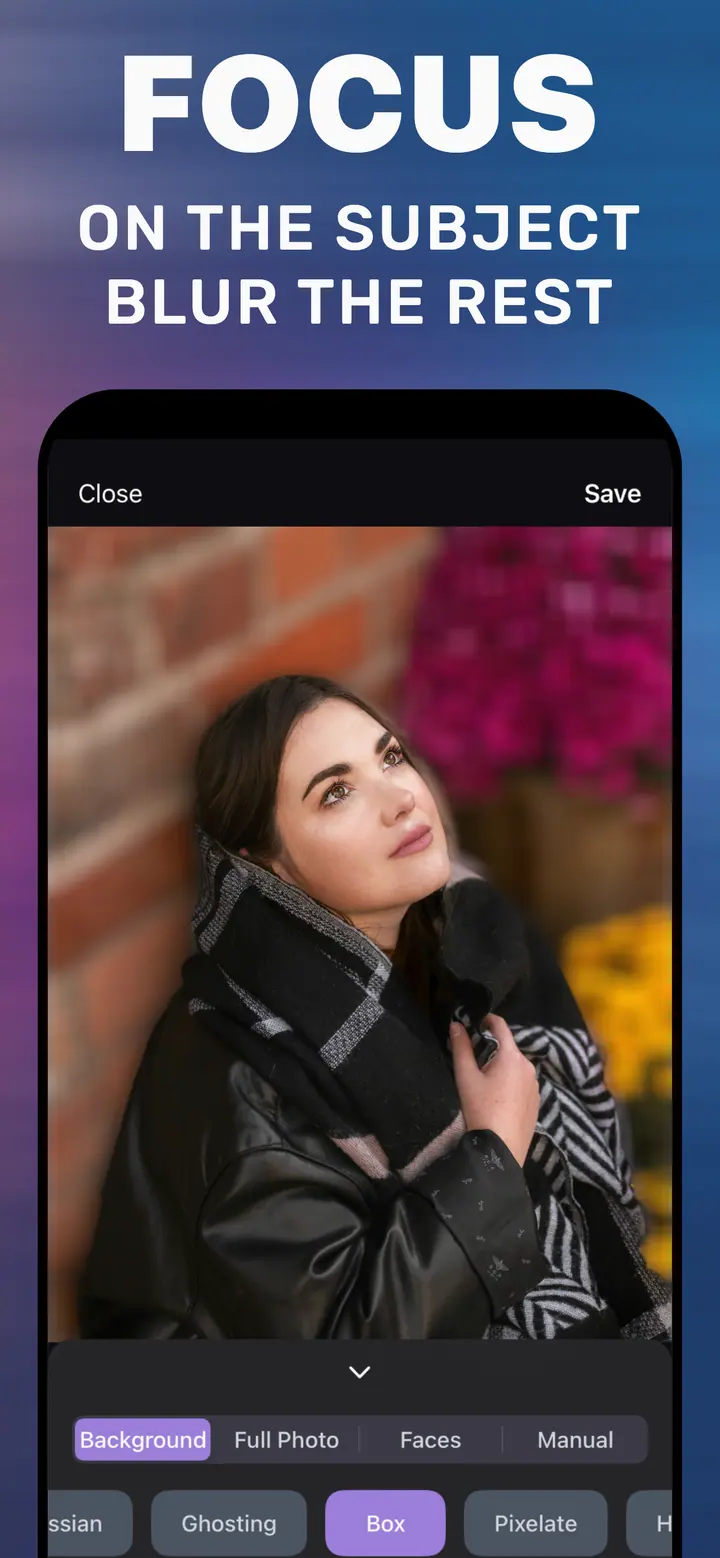
Full Photo softens the entire picture, which is what you want for a background image or to share a vibe without the detail. Background finds the subject and blurs behind it — this works on saved images too, as long as there is a clear subject. Manual gives you a brush: paint over a name in a screenshot, a house number, or a face in the crowd, and only that area is blurred. Faces detects faces automatically and blurs each one.
All four use the same style chips and the same Radius slider, so once you have done one, you can do the rest.
Screenshots specifically
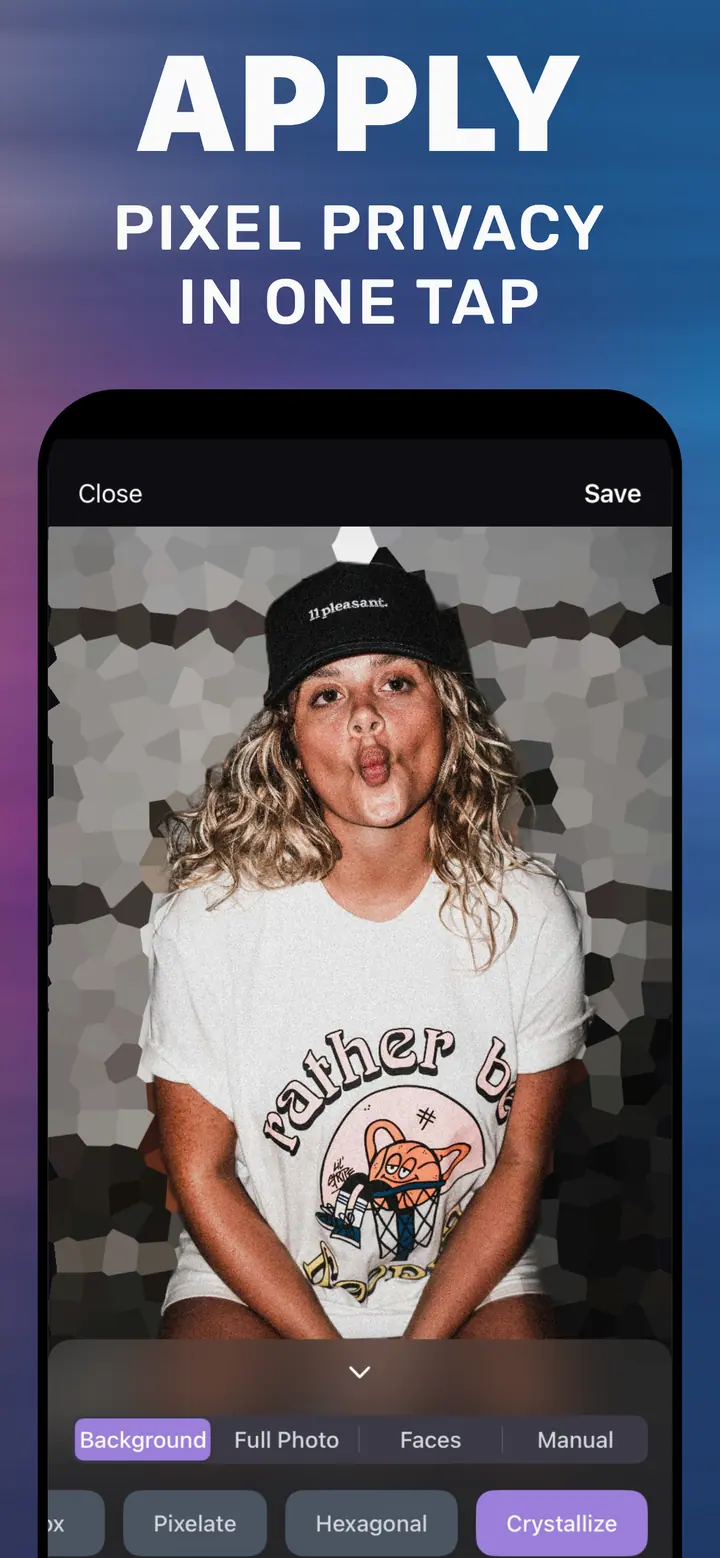
For screenshots of conversations or documents, the Manual tab with Pixelate or Box is the clearest choice: it makes text unreadable rather than merely soft. Use a Radius high enough that individual letters are not distinguishable when zoomed in, then save and share the copy.
How to blur a picture in How to Blur Photo
-
Open the picture
Launch the app and choose the image — a camera photo, a screenshot, or something saved from Safari or Messages.
-
Pick the tab that matches what you want
Full Photo for the whole picture, Background for a portrait look, Manual to brush an area, Faces for people.
-
Set style and Radius
Gaussian for soft, Pixelate or Box for unreadable. Drag Radius and watch the preview.
-
Save
Tap Save; the blurred picture is exported to your library.
Download How to Blur Photo
Free · iPhone with iOS 18.6+ · No uploads
Tips
For anything sensitive, zoom in before saving and confirm the text or face is unrecognisable.
Saved images are often low resolution; a lower Radius already looks strong on them.
Combine tabs: blur the background first, then switch to Manual for a leftover detail.
Frequently asked
Can I blur a screenshot on iPhone?
Yes. Open the screenshot in How to Blur Photo, use the Manual tab to brush the area, or Full Photo to blur all of it, and Save.
Can I blur a picture someone sent me?
Yes. Save it to Photos first, then open it in the app like any other image.
How do I blur just one part of a picture?
Use the Manual tab and paint over the region; Radius controls how strong the blur is inside the painted area.