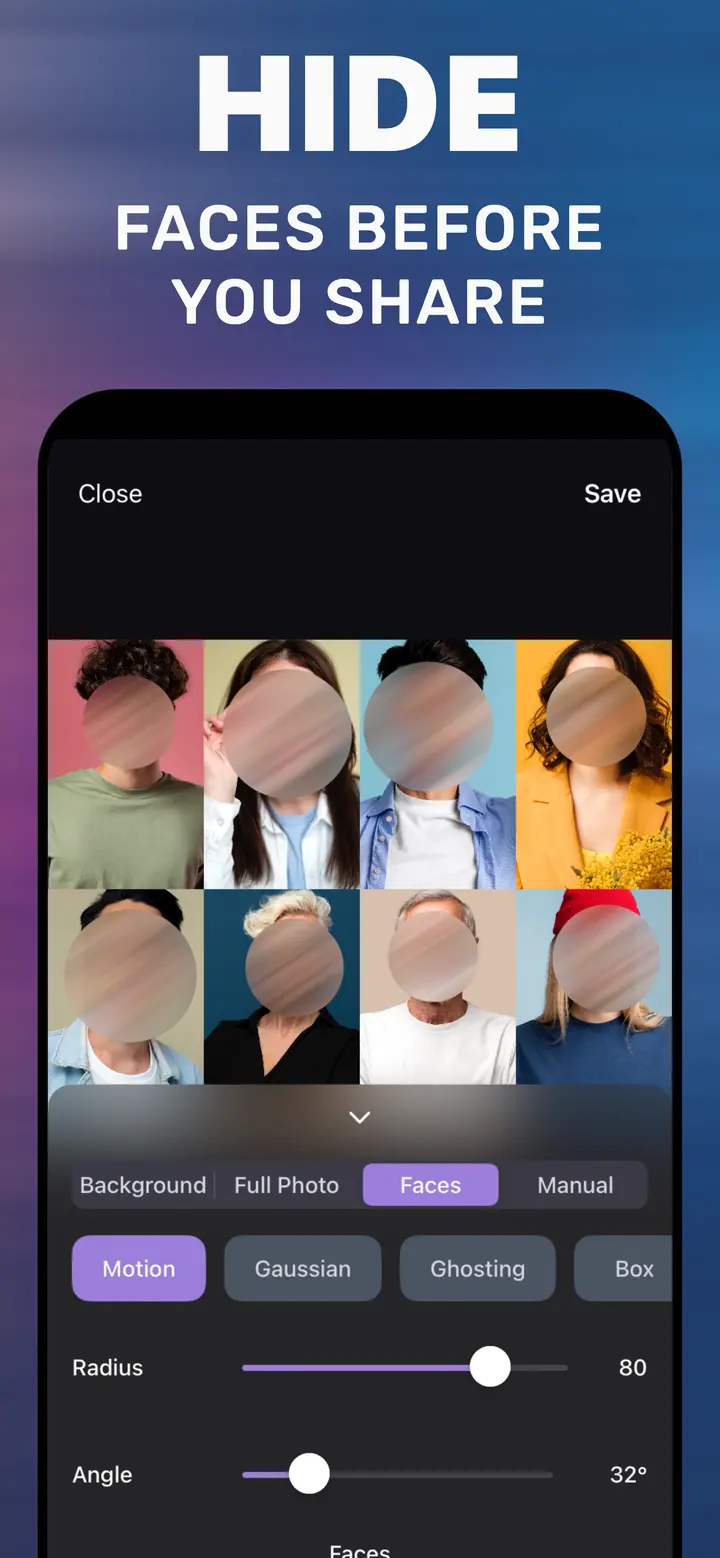
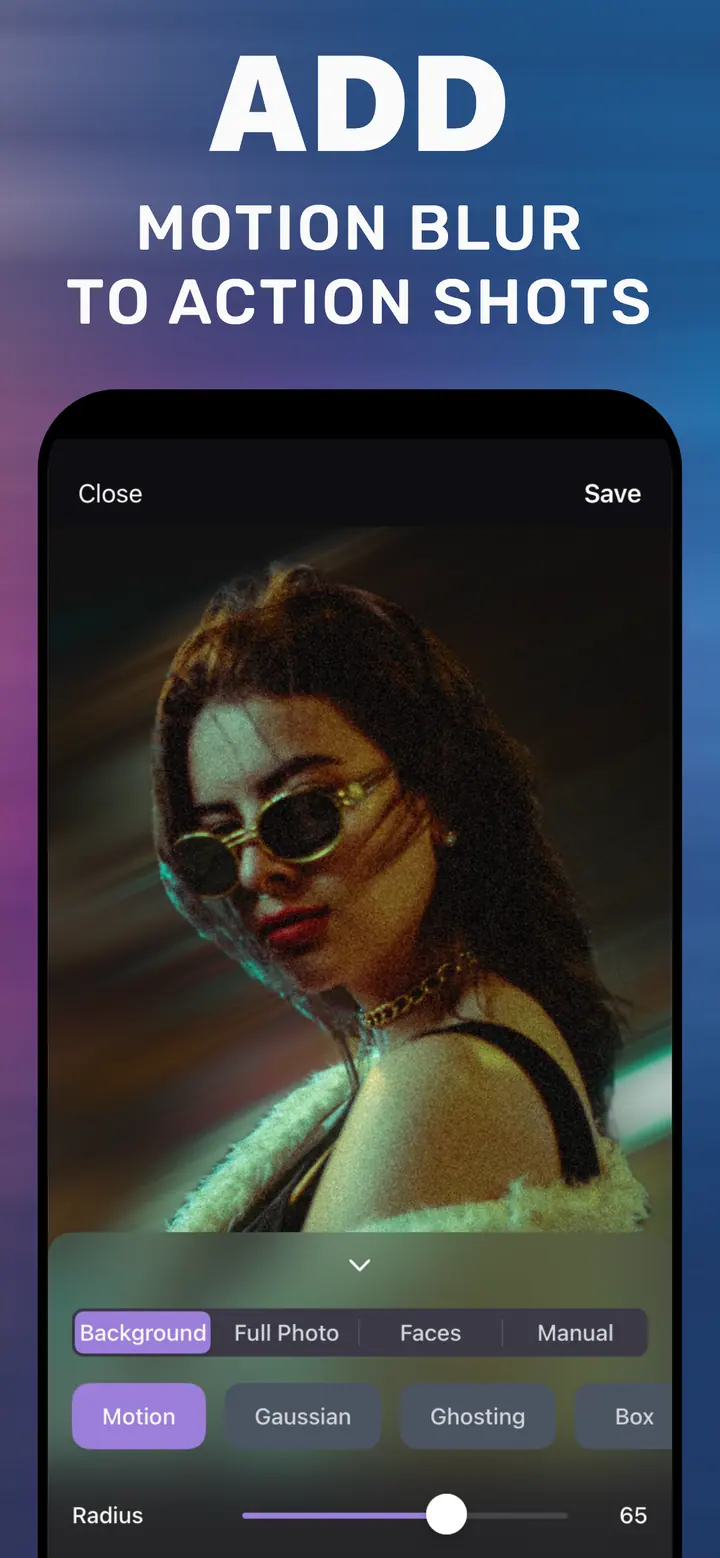
How to make the background blurry on iPhone
Short answer
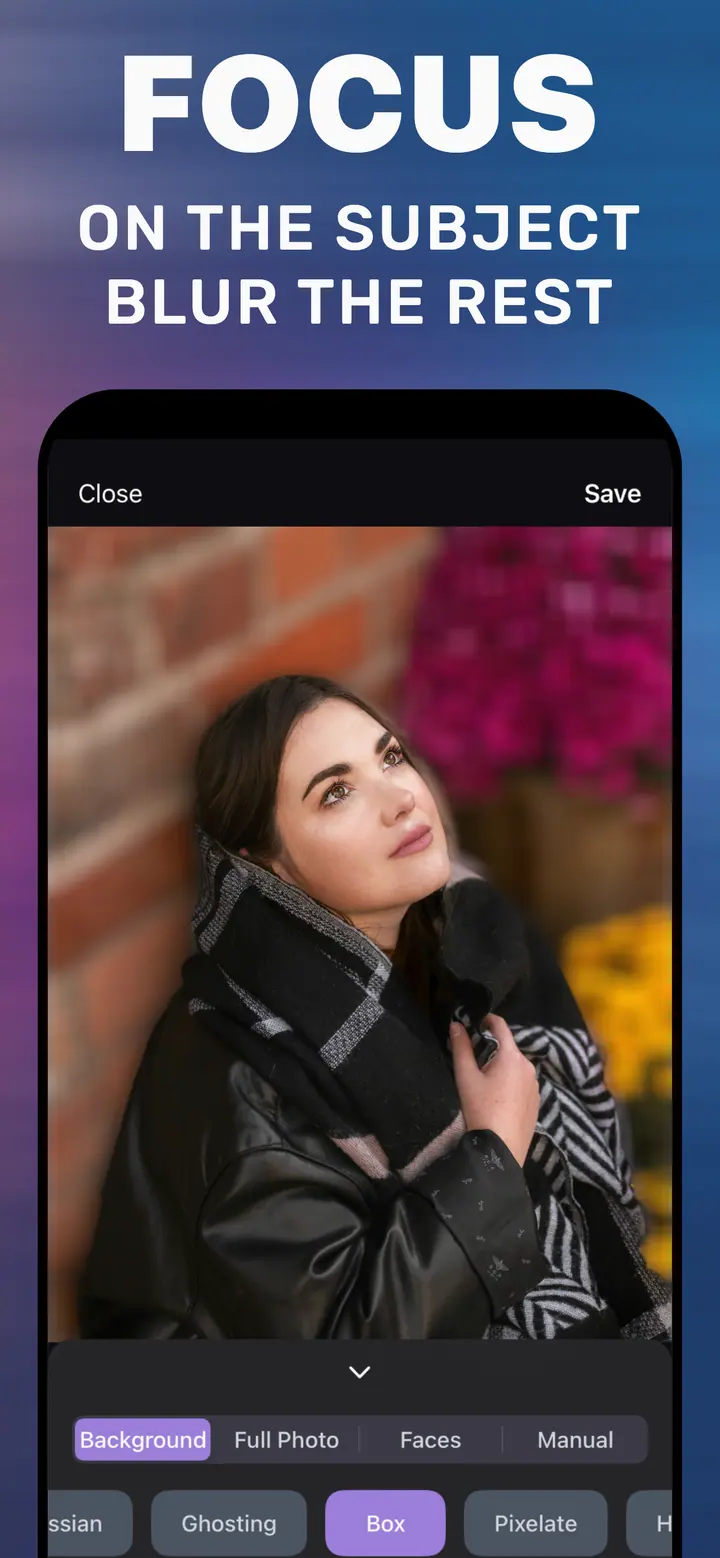
To make the background blurry on iPhone, either shoot in Portrait mode before you take the photo, or open an existing photo in How to Blur Photo, keep the Background tab selected so the subject stays sharp, drag the Radius slider until the background looks as blurry as you want, and tap Save. The second method works on any photo in your library.
 Free · No uploads · Works on photos you already took
If you have ever looked at a photo and thought “I wish the background was blurry”, this is the guide. It is written for people who are not photographers: no talk of f-stops, just what the options are on an iPhone and which one to use depending on whether the photo already exists.
Built into iPhone
Option 1: before you shoot — Portrait mode
Open Camera, swipe to Portrait, wait for the yellow “Natural Light” label, and take the picture. The background is blurred automatically, and you can adjust the amount later in Photos → Edit with the f-number control. Limitations: you must remember to do it before the shot, the subject has to be within a couple of metres, and it does nothing for photos you already have.
Option 2: after you shoot — How to Blur Photo
For photos that already exist, How to Blur Photo does the job Portrait mode would have done. It finds the subject on its own, and you decide how blurry the background should be with one slider called Radius. There is no masking to learn, and it is free to download for iPhone with iOS 18.6 or later.
What the Radius numbers mean in plain terms: 20–30 is “slightly out of focus”, 40–60 is what most people picture when they say “blurry background”, and 80+ turns the background into soft colour with no detail.
Common mistakes
Blurring the whole photo instead of the background — make sure the Background tab, not Full Photo, is selected. Pushing Radius to the maximum on a portrait — it looks like a sticker. Skipping the zoom check — always pinch in on hair and shoulders before you save.
Step by step in How to Blur Photo
-
Install and open
Get How to Blur Photo from the App Store, open it, and choose a photo from your library.
-
Confirm Background is selected
It is the default tab. The app highlights the subject and applies the blur behind it.
-
Drag Radius until it looks right
Start around 45. Move the slider and watch the live preview; stop when the background is as blurry as you want.
-
Tap Save
The blurry-background version is saved as a new photo; the original stays in your library.
Download How to Blur Photo
Free · iPhone with iOS 18.6+ · No uploads
Tips
Photos with a bit of distance between the person and the background look the most natural when blurred.
Gaussian is the style to use if you are unsure; it looks like a camera lens did it.
If you want the background blurry and a face hidden, do the background first, then switch to the Faces tab.
Frequently asked
How do I make the background blurry on a photo I already took?
Open it in How to Blur Photo, keep the Background tab selected, drag Radius, and Save. Portrait mode cannot be applied to a photo after the fact.
Can I make the background blurry on iPhone for free?
Yes. The app is free to download and basic background blur is included; extra styles are optional in-app purchases.
Why does Photos not let me blur my background?
The f-number control only appears on photos captured in Portrait mode, because it needs the depth data recorded at capture time.