How to blur background on iPhone (after you already took the photo)
Short answer
To blur the background on iPhone after the photo is taken, open it in How to Blur Photo, keep the Background tab selected so the subject is detected automatically, choose Gaussian, drag Radius until the background is as soft as you want, and tap Save. It works on any photo in your library, not only Portrait shots, and processing stays on your iPhone.
 Free · No uploads · Works on photos you already took
Most answers to “how to blur background on iPhone” send you to Portrait mode. That is fine if you have not taken the picture yet. If the photo is already in Recents, shot in normal Photo mode, on a front camera, or sent to you by someone else, Portrait mode cannot help. This guide covers what the built-in Photos app can and cannot do, then the exact taps to blur the background of an existing photo.
Built into iPhone
What iPhone can do on its own
Portrait mode records depth information at the moment you press the shutter. Later, in Photos → Edit, you can change the f-number to make that background blur stronger or weaker. That only works on photos that were captured in Portrait mode in the first place. A regular Photo-mode picture has no depth map, so the f-number slider is simply not there.
Markup can draw over a background, and the Clean Up tool on Apple Intelligence iPhones can remove objects, but neither of them produces a photographic blur. If you want a sharp subject in front of a soft background on a photo you already have, you need an editor that separates the subject itself.
Why an after-the-fact blur app is the practical fix
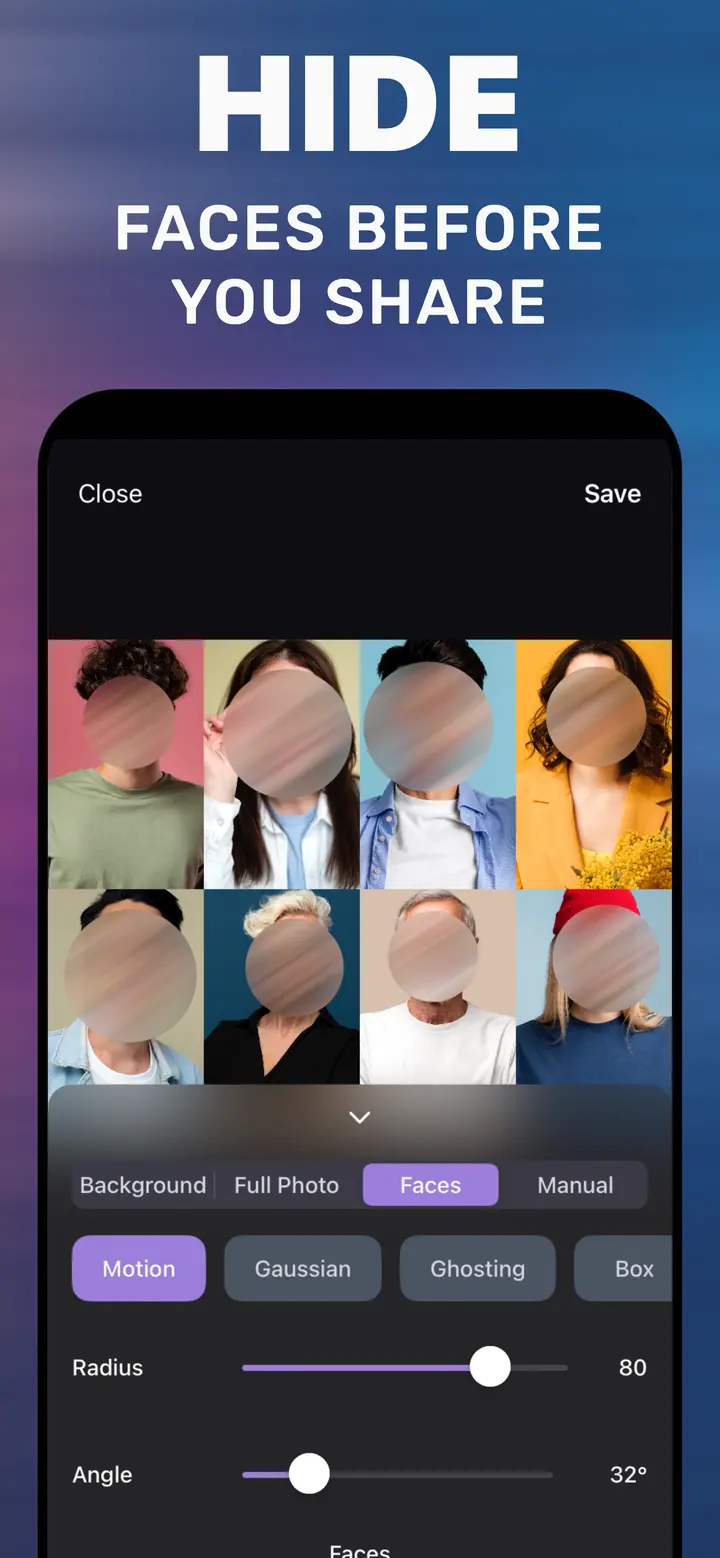
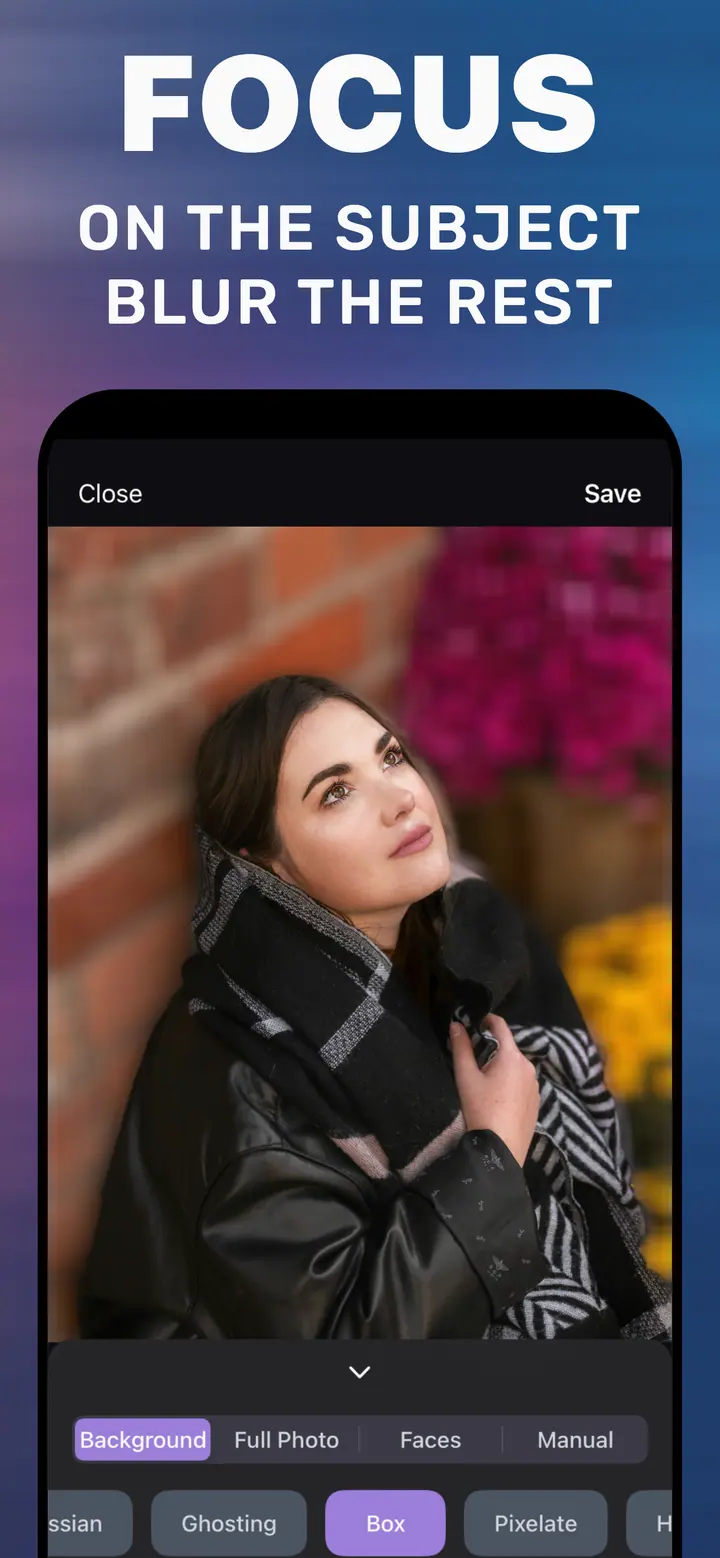
How to Blur Photo (the app behind Make Blur) detects the person or object in the frame, keeps it sharp, and applies the blur only to what is behind it. You control the strength with a Radius slider, so a portrait can get a gentle depth-of-field look and a busy street shot can get a heavy one.
It is free to download from the App Store, needs iPhone with iOS 18.6 or later, and processes everything on the device. Basic background blur is included; extra styles and tools are optional in-app purchases.
Picking the right strength
A Radius around 30–45 looks like a wide-aperture lens: the background is soft but still readable. Around 60–80 the background turns into colour and shape only, which is what most people mean by “blurry background” on social posts. Anything above 90 is a stylistic choice for product shots or text overlays. Zoom in on hair and shoulders before saving; if the edge looks fine there, it looks fine everywhere.
How to blur background on iPhone in How to Blur Photo
-
Open the app and pick the photo
Install How to Blur Photo from the App Store, open it, and choose any photo from your library. Portrait mode is not required — a normal Photo-mode shot works.
-
Stay on the Background tab
The Background tab is selected by default. The app finds the subject and masks it so the person or object stays sharp while everything behind them is targeted.
-
Choose a style and set Radius
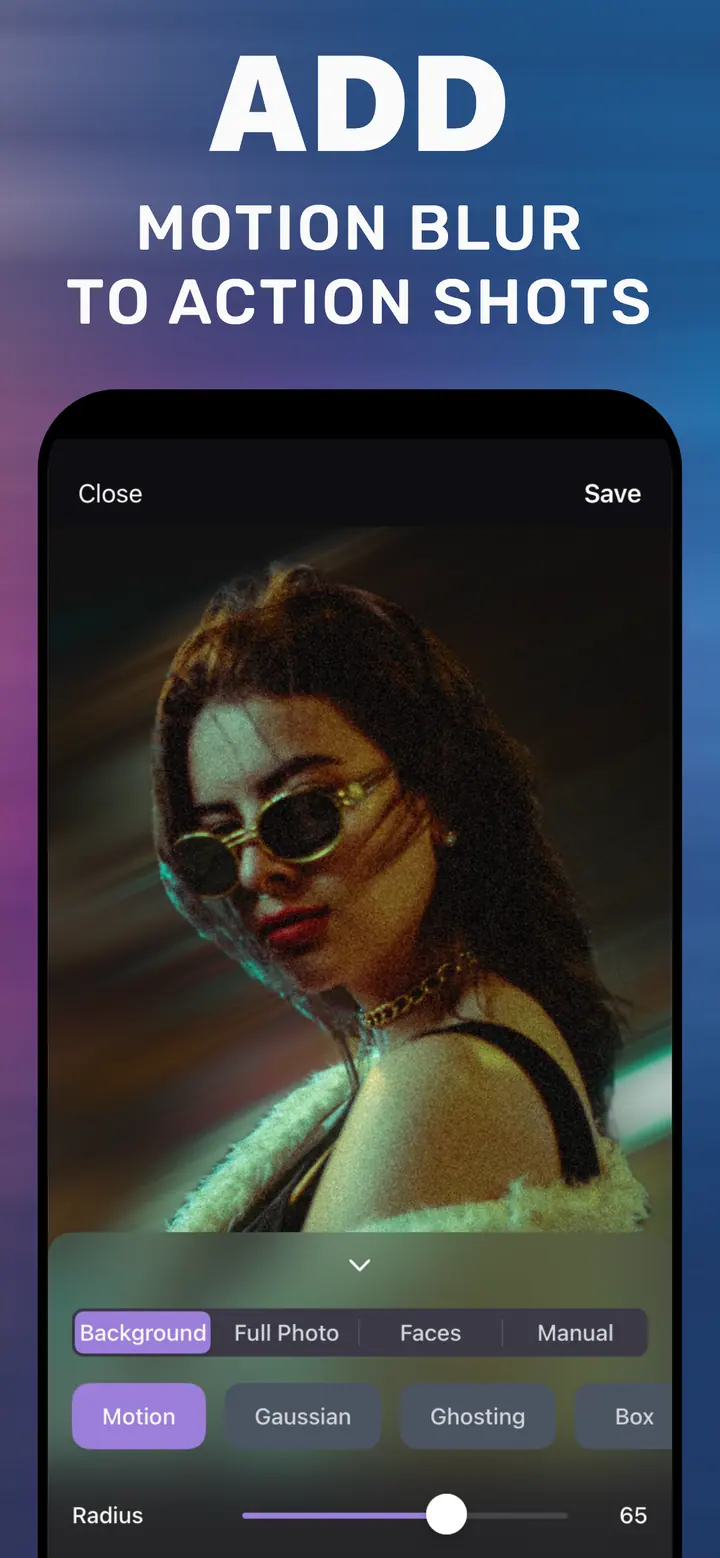
Tap Gaussian for the classic soft look (or Motion, Ghosting, Box, and others). Drag Radius until the background is as blurred as you want; the preview updates live.
-
Save
Tap Save in the top-right corner. The edited photo is written to your library as a new image, so the original is untouched.
Download How to Blur Photo
Free · iPhone with iOS 18.6+ · No uploads
Tips for a natural result
Photos with clear separation between subject and background (a person against a wall, a cup on a table) mask cleanest.
If a small region near the edge is missed, switch to the Manual tab and brush it yourself before you save.
For action photos, Motion with a low Angle reads as speed rather than as an out-of-focus mistake.
Questions people ask next
Can I blur the background on iPhone without Portrait mode?
Yes. How to Blur Photo separates the subject from the background on any photo, including shots taken in normal Photo mode, older pictures, and images you received from someone else.
Can I blur the background on an existing photo in the Photos app?
Only if the photo was captured in Portrait mode. For everything else, Photos has no background-blur control; you need a third-party editor.
Which iPhones does the app support?
Any iPhone running iOS 18.6 or later. There is no requirement for Apple Intelligence hardware.
Does it upload my photos?
No. The listing states photos are processed on the device and are not uploaded to external servers when you blur backgrounds.