How to pixelate a photo on iPhone — faces, text, or the whole image
Short answer
To pixelate a photo on iPhone, open it in How to Blur Photo, choose a tab — Faces to pixelate detected faces automatically, Manual to brush over text or an object, Background or Full Photo for larger areas — tap the Pixelate style, drag Radius to set the block size, and tap Save. The Photos app has no pixelate tool for regular photos.
 Free · No uploads · Works on photos you already took
Pixelation replaces an area with large square blocks. It is the standard way to hide identity or text because it is obvious, clean, and, done properly, irreversible. It is also a look in its own right — retro, 8-bit, glitchy. On iPhone the Photos app cannot pixelate a normal photo; How to Blur Photo makes it a style you can apply to faces, a brushed region, the background, or the whole frame.
Built into iPhone
Pixelate in Photos?
Only via Clean Up on iPhones with Apple Intelligence (iPhone 15 Pro, 16-series and newer, iOS 18.1+), which pixelates or blurs a brushed face with a fixed strength. On other iPhones, and for text or whole-image pixelation, Photos has nothing. Markup shapes cover rather than pixelate.
Block size and Radius
In How to Blur Photo, Radius controls the size of the pixel blocks. Small values give a fine mosaic that hides detail while keeping the general shape; large values give big, obvious squares. For privacy on faces and text, use a block size larger than an eye or a letter. For a retro look on the whole photo, a medium value keeps the scene recognisable.
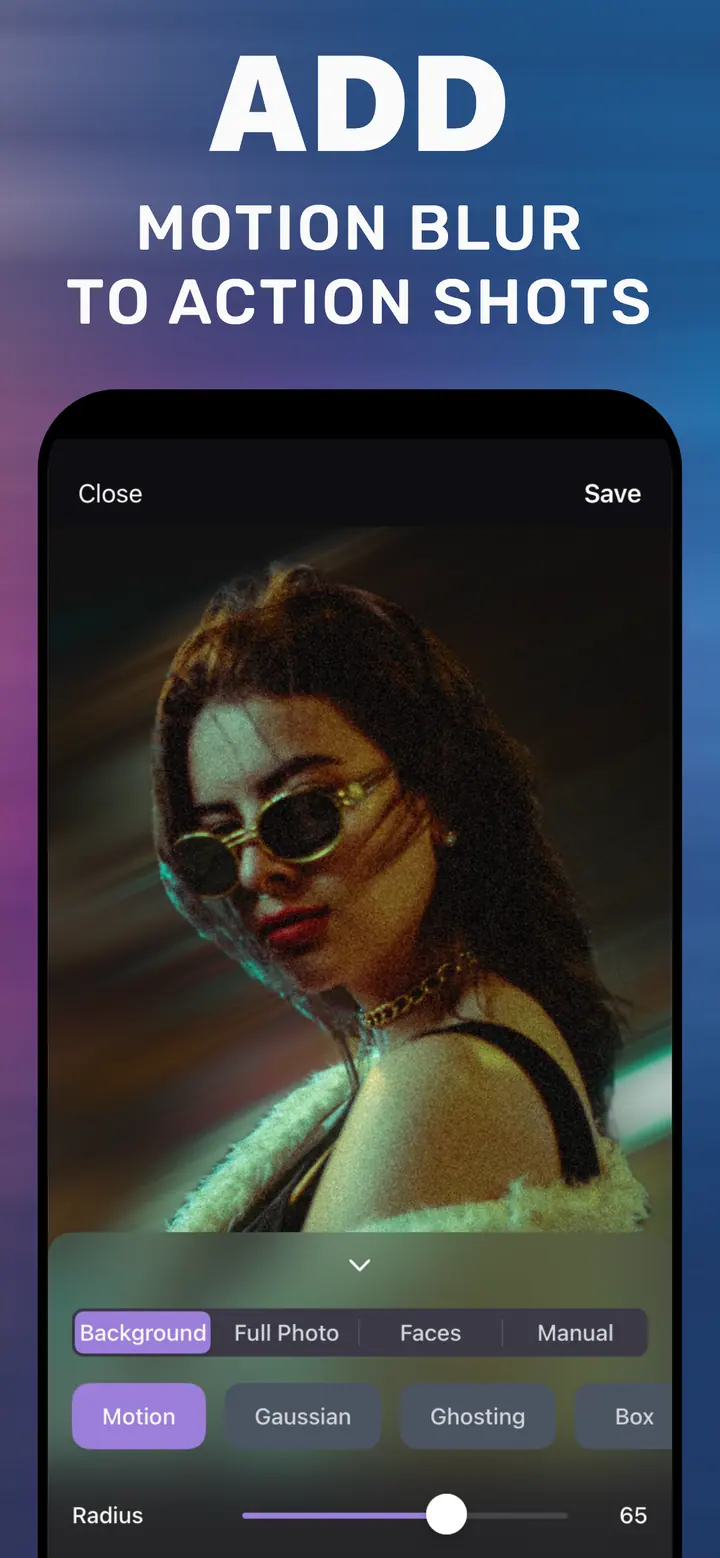
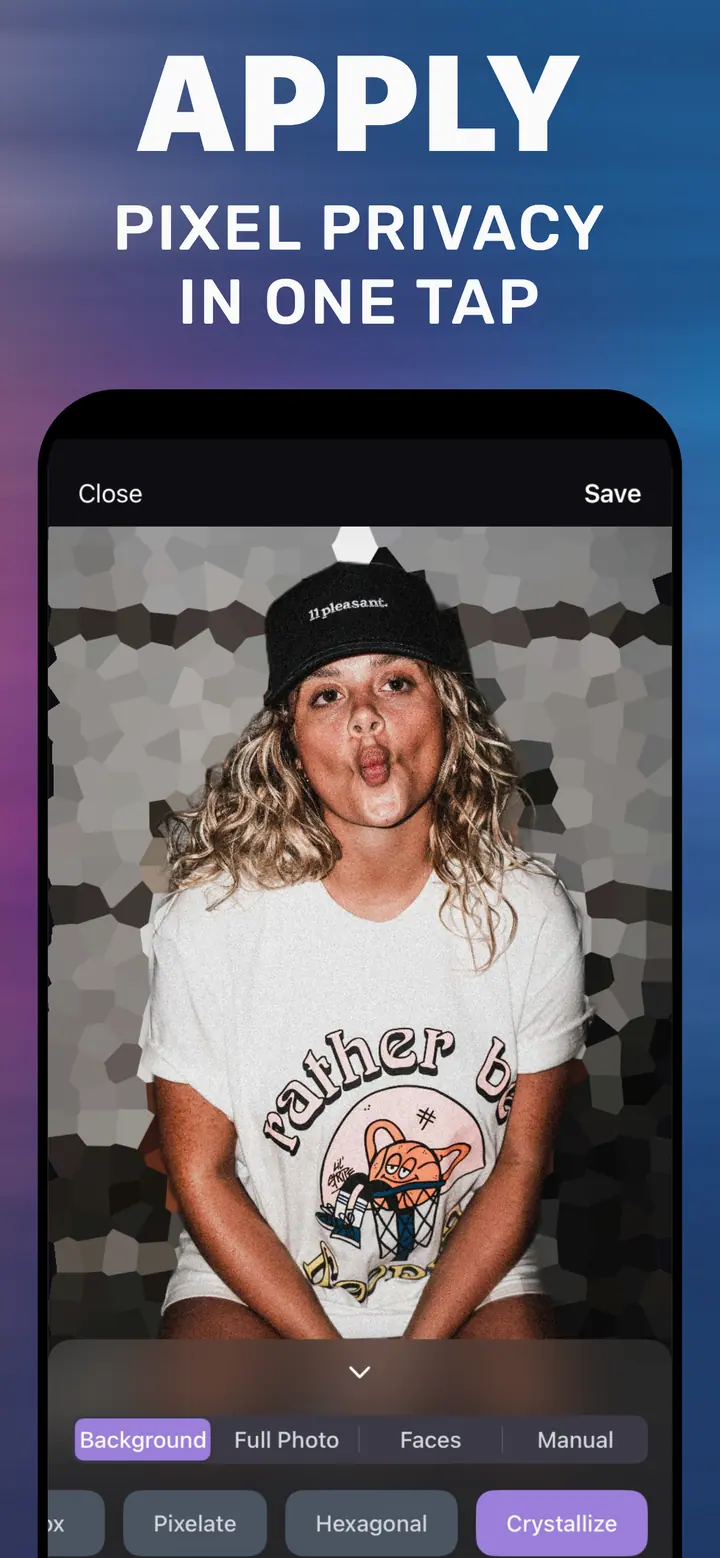
Pixelate is one of the style chips next to Gaussian, Motion, Ghosting, Box, Hexagonal, and Crystallize. Hexagonal is the same idea with hex cells; Crystallize uses irregular shards.
Four places to pixelate
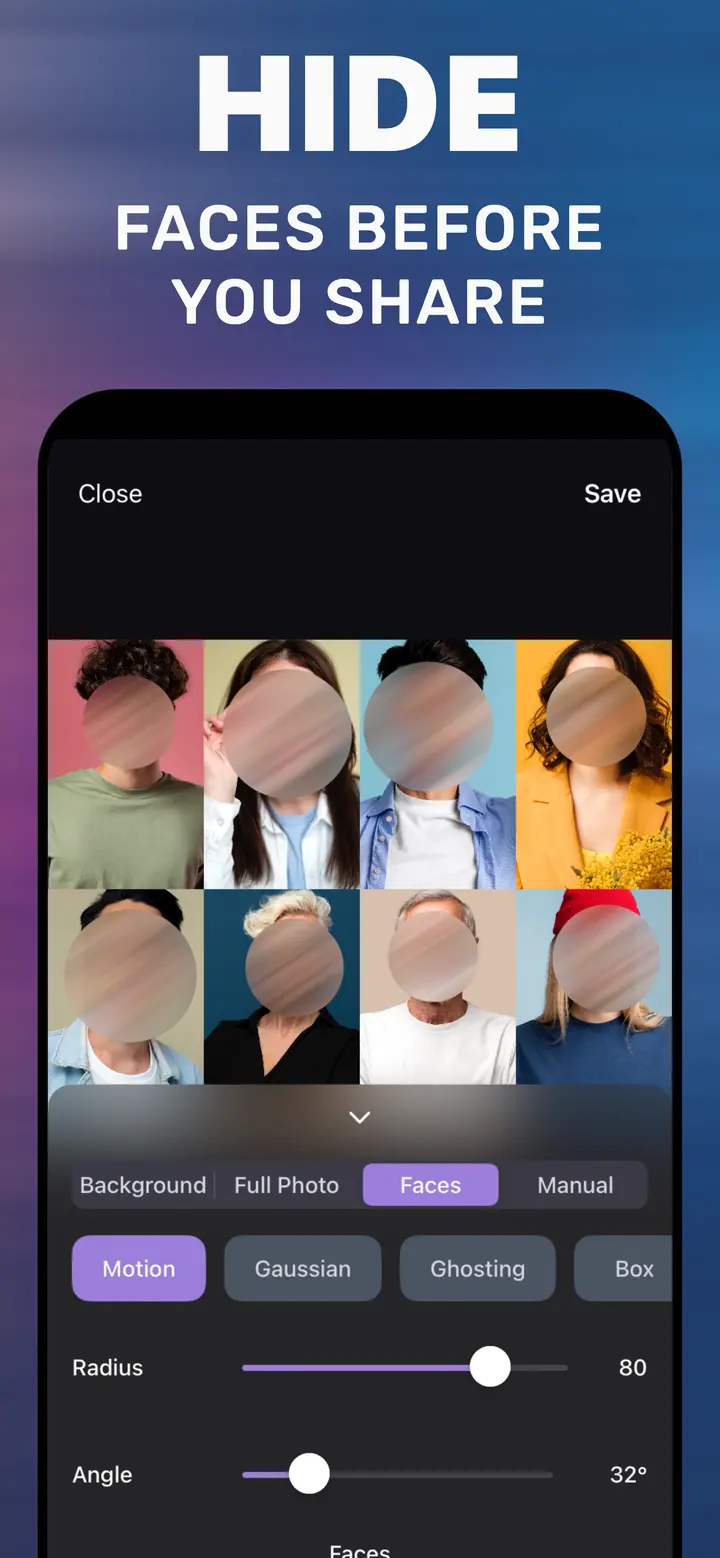
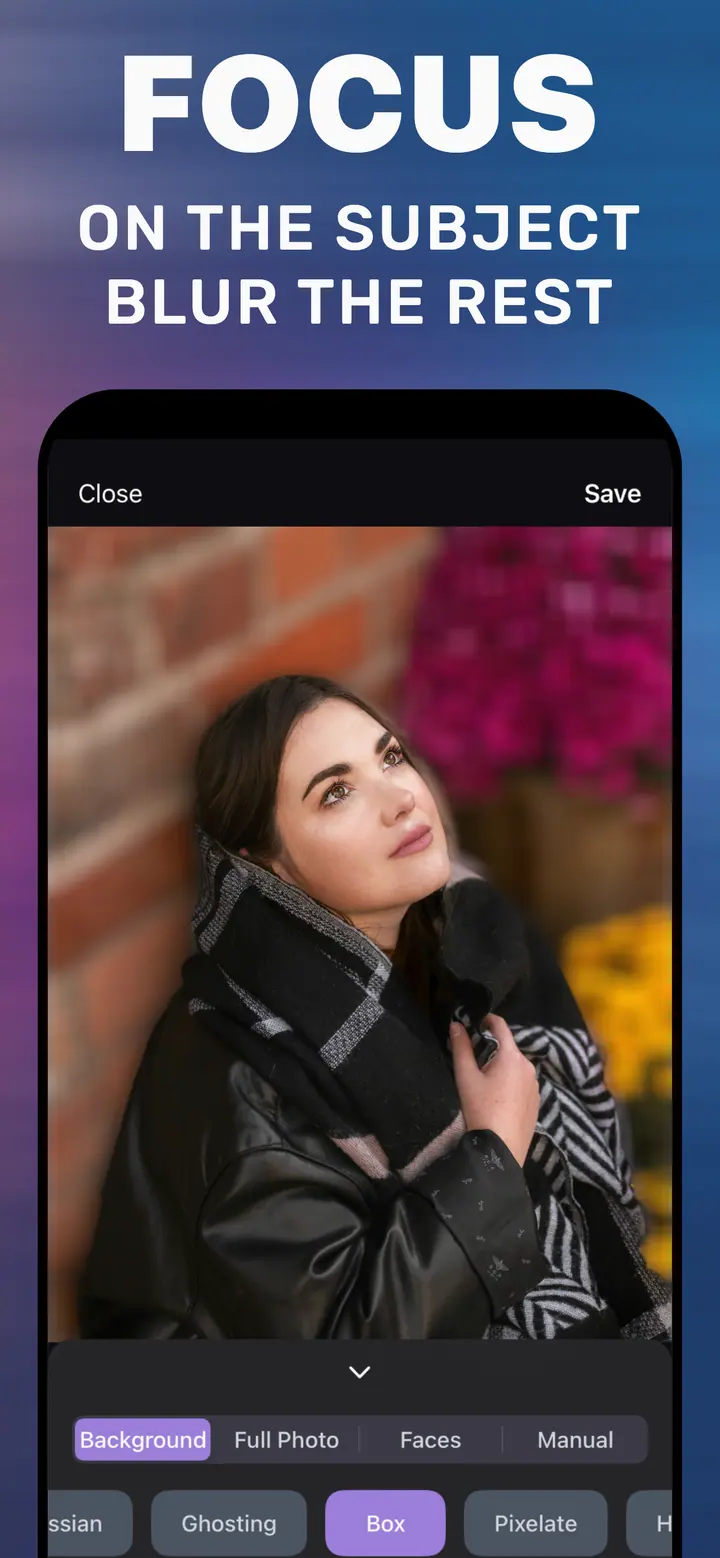
Faces tab: every detected face is pixelated at once — the App Store listing calls it “pixel privacy in one tap”. Manual tab: brush over a plate, a badge, a screen, or text. Background tab: keep the subject sharp and pixelate everything behind them for a stylised portrait. Full Photo: pixelate the entire image for an abstract or 8-bit version.
How to pixelate a photo in How to Blur Photo
-
Open the photo
Launch How to Blur Photo and choose the image.
-
Choose where to pixelate
Faces for people, Manual to brush an area, Background or Full Photo for larger regions.
-
Tap Pixelate and drag Radius
Pixelate is in the style row. Increase Radius until blocks are large enough to hide detail.
-
Save
Zoom in to check, then tap Save to export the pixelated photo.
Download How to Blur Photo
Free · iPhone with iOS 18.6+ · No uploads
Tips
For privacy, err on the side of larger blocks; small pixelation on faces is surprisingly recognisable.
For an 8-bit look, use Full Photo with a medium Radius on a high-contrast image.
Hexagonal and Crystallize give a similar privacy result with a more decorative pattern.
Frequently asked
How do I pixelate a face on iPhone?
Open the photo in How to Blur Photo, tap Faces, tap Pixelate, raise Radius, and Save. All detected faces are pixelated together.
Can pixelated photos be reversed?
Not when the blocks are larger than the features they cover; the detail is discarded in the saved copy. Keep the original private.
Is there a free pixelate app for iPhone?
How to Blur Photo is free to download and includes Pixelate as a style; advanced options are optional in-app purchases.