How to blur faces in a photo on iPhone
Short answer
To blur faces in a photo on iPhone, open it in How to Blur Photo, tap the Faces tab, and the app detects every face and blurs each one; set Radius for how strong the blur is, choose Pixelate or Gaussian, and tap Save. It works on any iPhone running iOS 18.6 or later, without Apple Intelligence, and the photo never leaves the device.
 Free · No uploads · Works on photos you already took
Blurring faces is the polite default before posting a group photo, a class picture, a protest, or a street scene: not everyone in the frame agreed to be online. iPhones with Apple Intelligence gained a way to do this in Photos, but it is limited to recent Pro and 16-series models and certain regions. This guide covers the built-in option, its limits, and a way that works on every supported iPhone.
Built into iPhone
What the Photos app offers
On iPhone 15 Pro, iPhone 16 and newer models running iOS 18.1 or later with Apple Intelligence enabled, Photos → Edit → Clean Up lets you brush over a face; the tool pixelates or blurs the covered area. It is manual (one face at a time), the strength is not adjustable, and it is unavailable on older iPhones and in some regions and languages. Without Apple Intelligence, Photos can only cover a face with a Markup shape or sticker — hiding, not blurring.
Automatic face blur for every supported iPhone
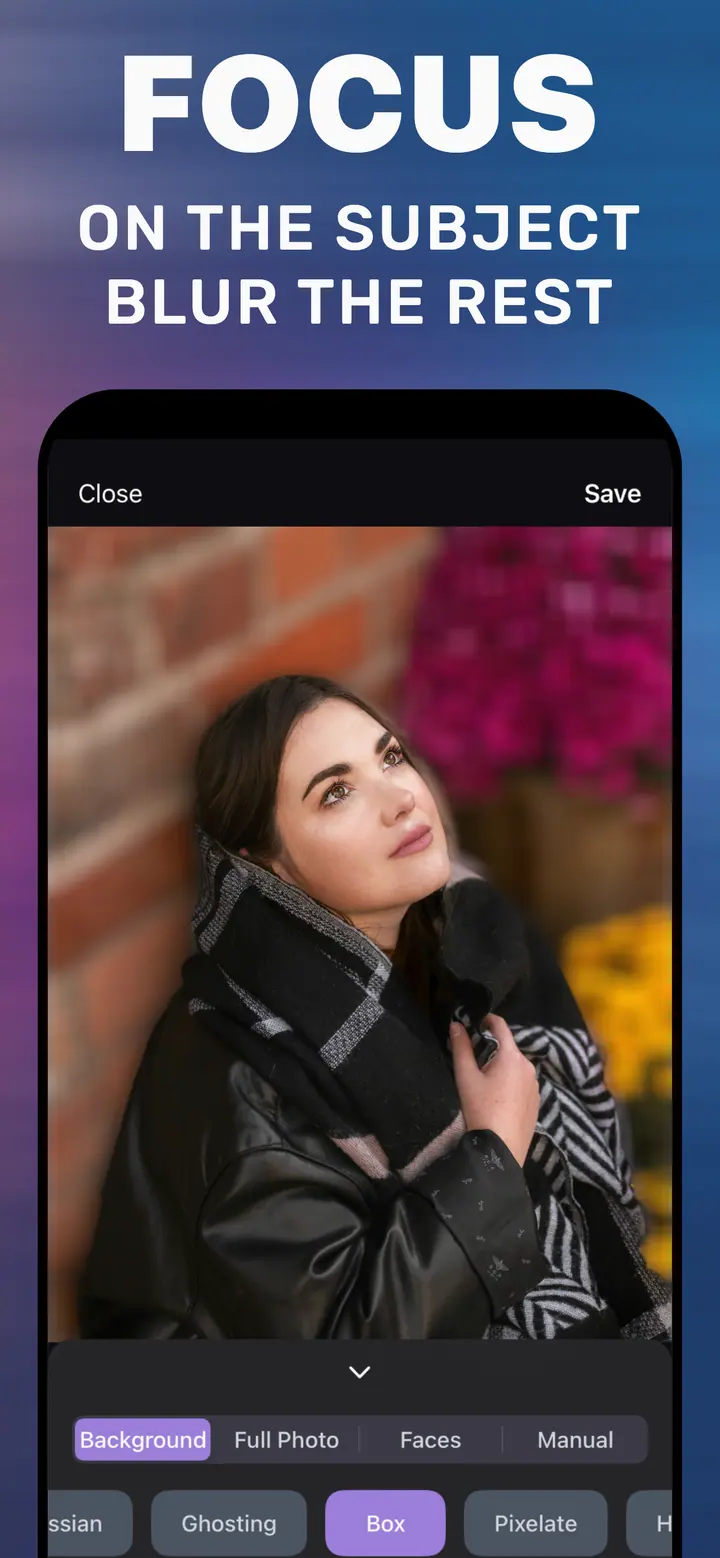
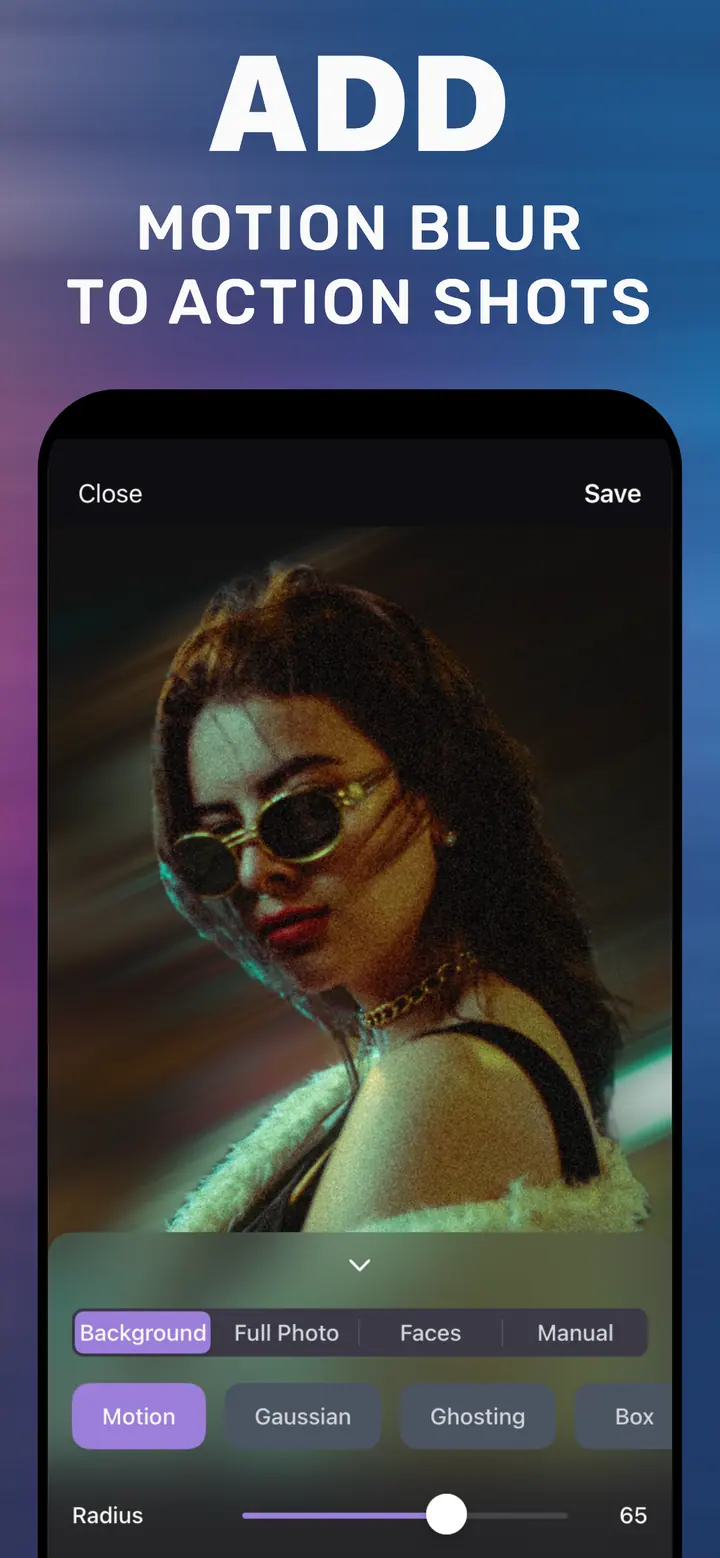
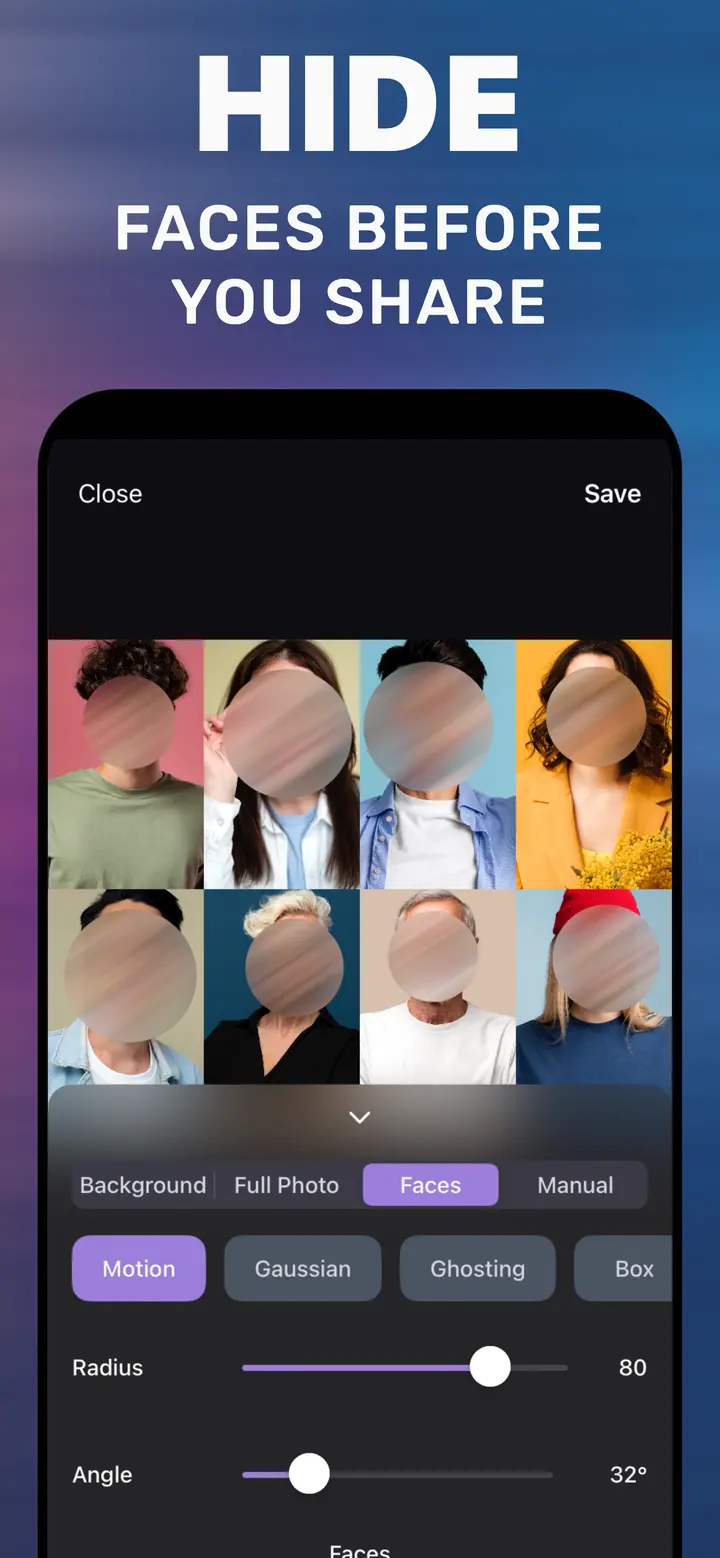
How to Blur Photo has a dedicated Faces tab. It detects the faces in the frame and shows them in a grid, each already blurred, so a group photo with a dozen people takes one tap rather than a dozen brush strokes. You choose the style — Pixelate for the classic censored look, Gaussian or Box for a softer one — and Radius for how strong it is. Processing is on-device, which matters when the whole point is privacy.
The requirement is iOS 18.6 or later on any iPhone; there is no dependency on Apple Intelligence hardware.
Blur some faces, keep others
If you want your own face visible and everyone else blurred, use the Manual tab after or instead of Faces: brush over the faces you want hidden and leave yours alone. The same Radius and style apply to the painted area.
How strong is strong enough
A face is still recognisable at low blur, especially to people who know the person. For genuine anonymity, use Pixelate or a Gaussian Radius high enough that eyes, nose, and mouth are indistinguishable at full zoom. The App Store screenshot shows Radius 80 for faces; treat that as a sensible starting point, not a maximum.
How to blur faces in How to Blur Photo
-
Open the photo
Launch How to Blur Photo and pick the group photo, street shot, or screenshot.
-
Tap the Faces tab
Faces are detected automatically and appear in a grid, each blurred.
-
Choose a style and set Radius
Pixelate for an obvious privacy blur, Gaussian for a softer one. Raise Radius until features are unrecognisable when zoomed in.
-
Save and share
Tap Save. The blurred version is exported to your library and is the one you upload.

Download How to Blur Photo
Free · iPhone with iOS 18.6+ · No uploads
Tips
Zoom in on each face before saving; a blur that looks strong on a small screen may still be recognisable.
Blur faces before cropping or compressing for a messaging app, so detection has the full-resolution image to work with.
For children in school or sports photos, combine Faces with Background blur to remove identifiable signs and logos too.
Frequently asked
How do I blur faces on iPhone without Apple Intelligence?
Use How to Blur Photo. Its Faces tab detects and blurs faces on any iPhone running iOS 18.6 or later, with no Apple Intelligence requirement.
Can I blur multiple faces at once?
Yes. All detected faces are blurred together on the Faces tab; strength and style apply to all of them.
Is blurring faces reversible by someone else?
A strong Pixelate or high-Radius Gaussian removes the underlying detail from the saved copy. Do not share the original, and use a strength that makes features indistinguishable at full zoom.
Are the photos uploaded to a server for face detection?
No. The listing states processing is on-device and photos are not uploaded.